
This article explains how to access your Tradovate account, complete your initial setup, and begin trading.
Tradovate Login Credentials
After purchasing your first Tradovate account, you will receive your Tradovate login credentials.
Please note that during periods of high trading volume or market volatility, account creation, resets, and Performance Account provisioning may take longer than normal. If you have not received your Tradovate account within 6 hours of placing your order, please submit a Help Desk ticket.
You can find your Tradovate username and password in either:
- In your Apex welcome email, or
- Inside your Apex Trader Funding User Dashboard, under the “Tradovate Account” section:
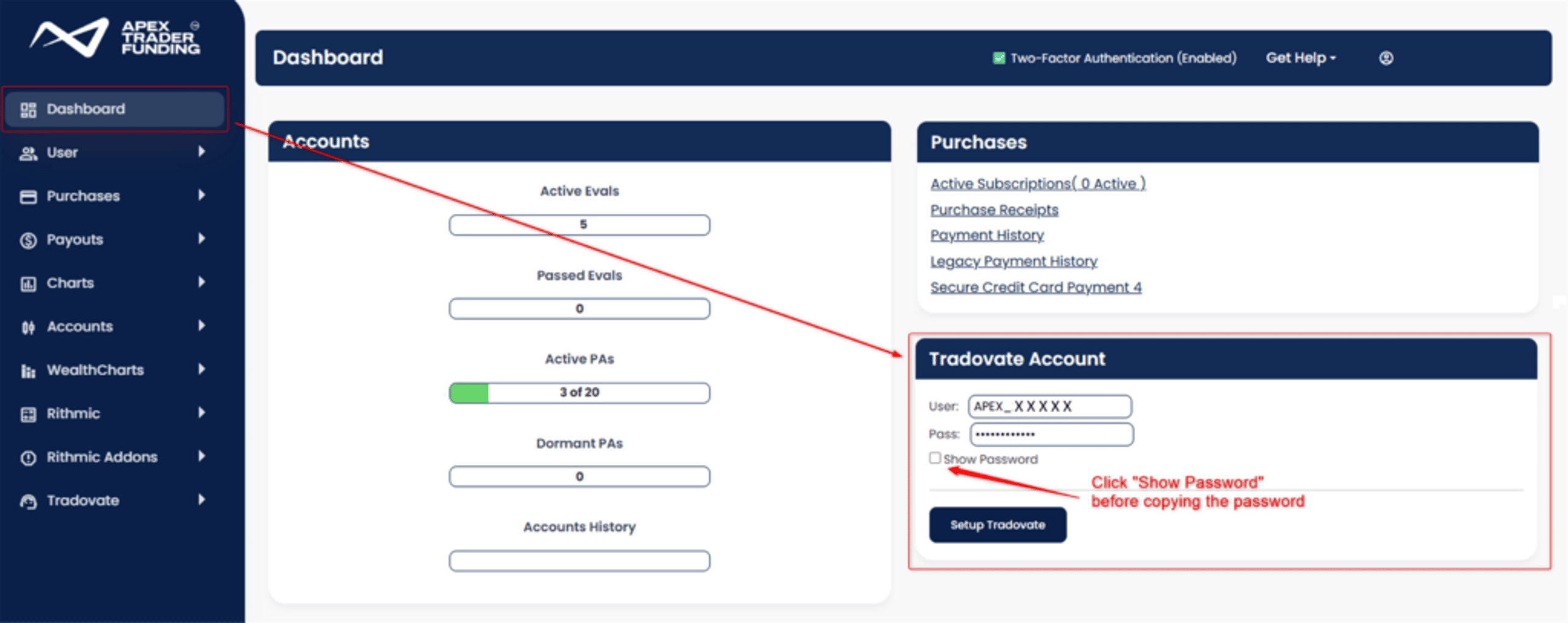
NOTE: Please be sure to first click the “Show Password” checkbox as shown above to display the actual password before copying
Sign In and Complete Setup
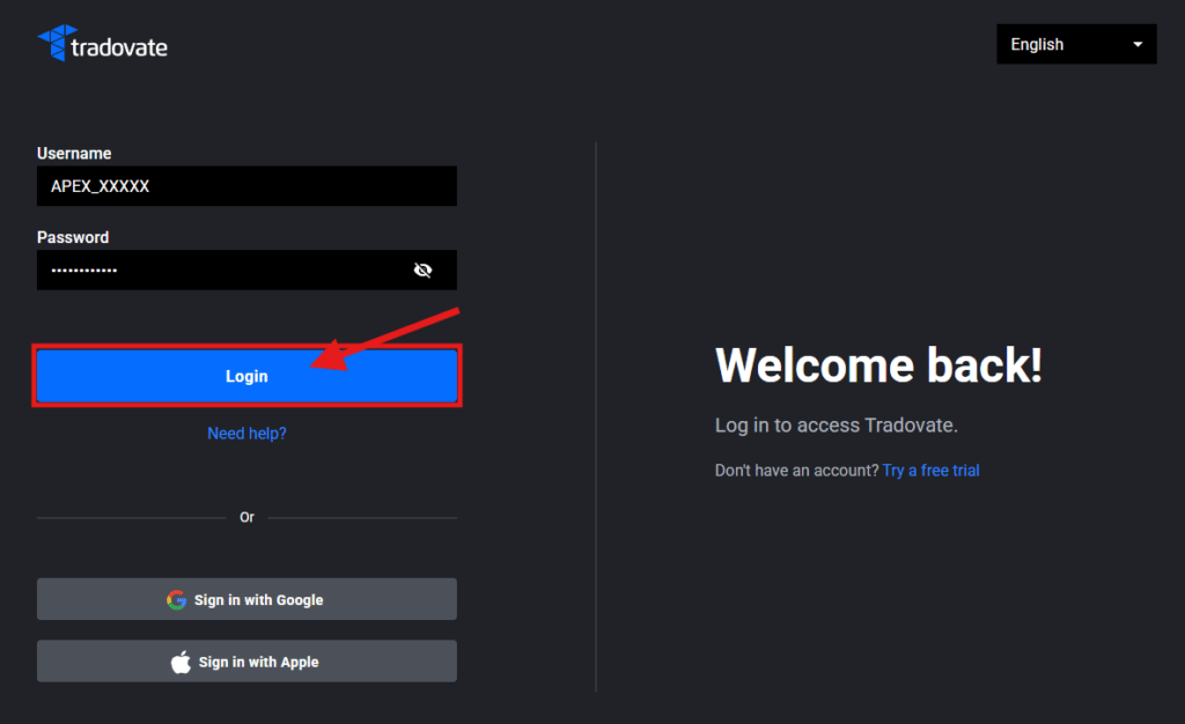
Go to the Tradovate welcome page and sign in using your Tradovate username and password.
Important:
- Use a desktop web browser for your initial login. Do not use the Tradovate mobile app.
- Make sure your username and password do not include any extra spaces before or after the text.
Data Activation
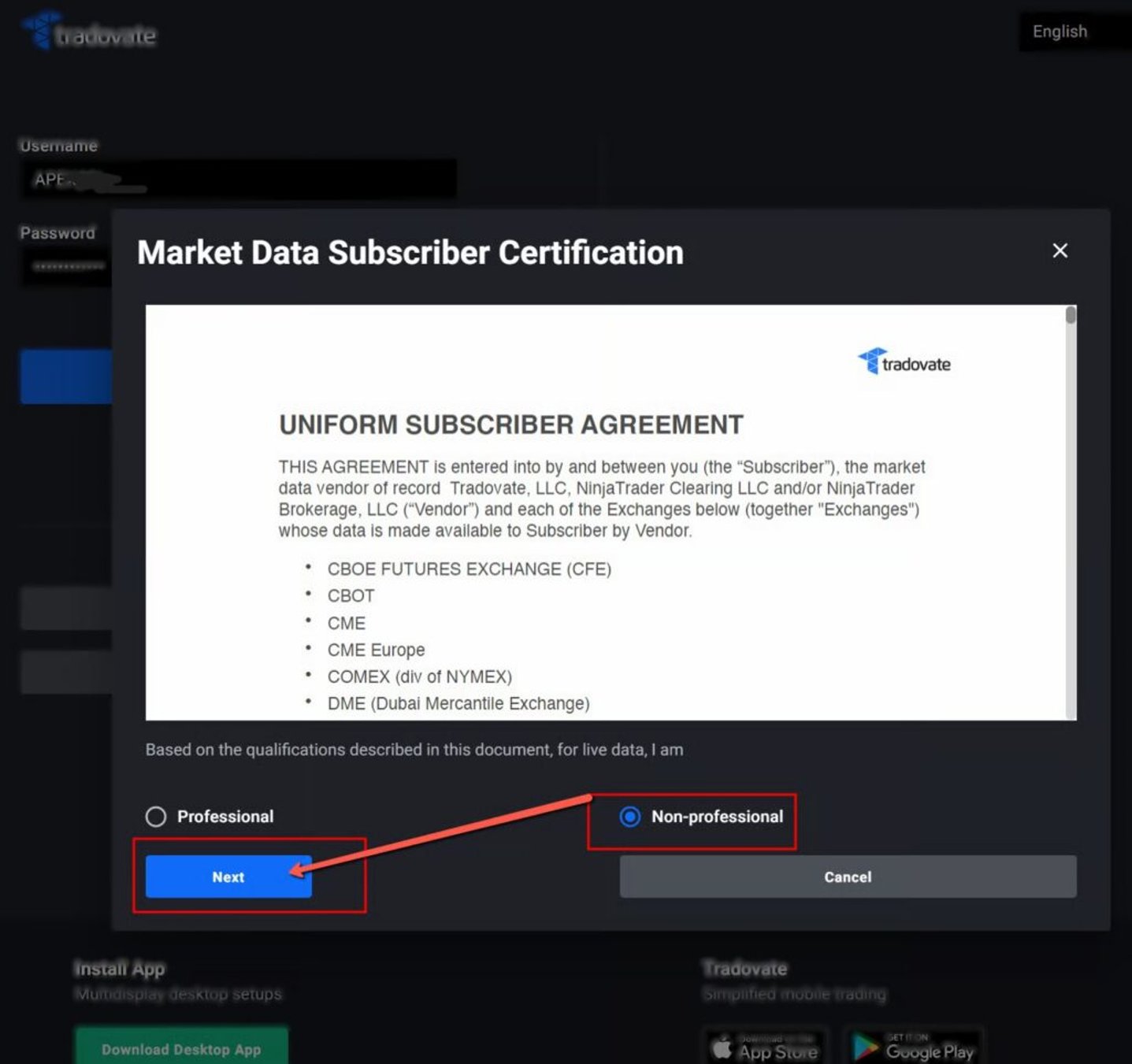
Before your market data can be activated, you must complete the required information and sign the exchange agreements.
When prompted to select your market data status, choose “Non-Professional”.
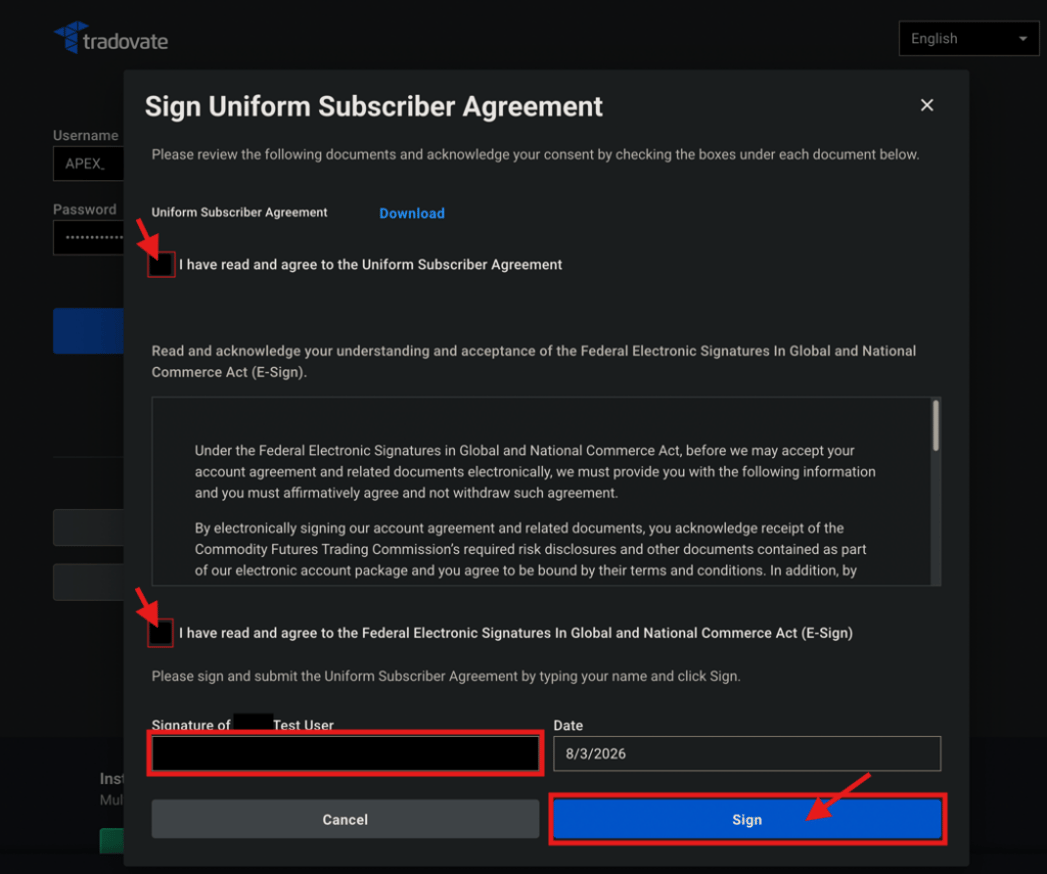
Complete the agreement by checking off the two acknowledgment boxes and typing your name as it appears above the signature box, and click “Sign”:
Additionally, there may be an updated User License Agreement to review and accept before continuing. If so, please read through the agreement and scroll to the bottom to Accept:
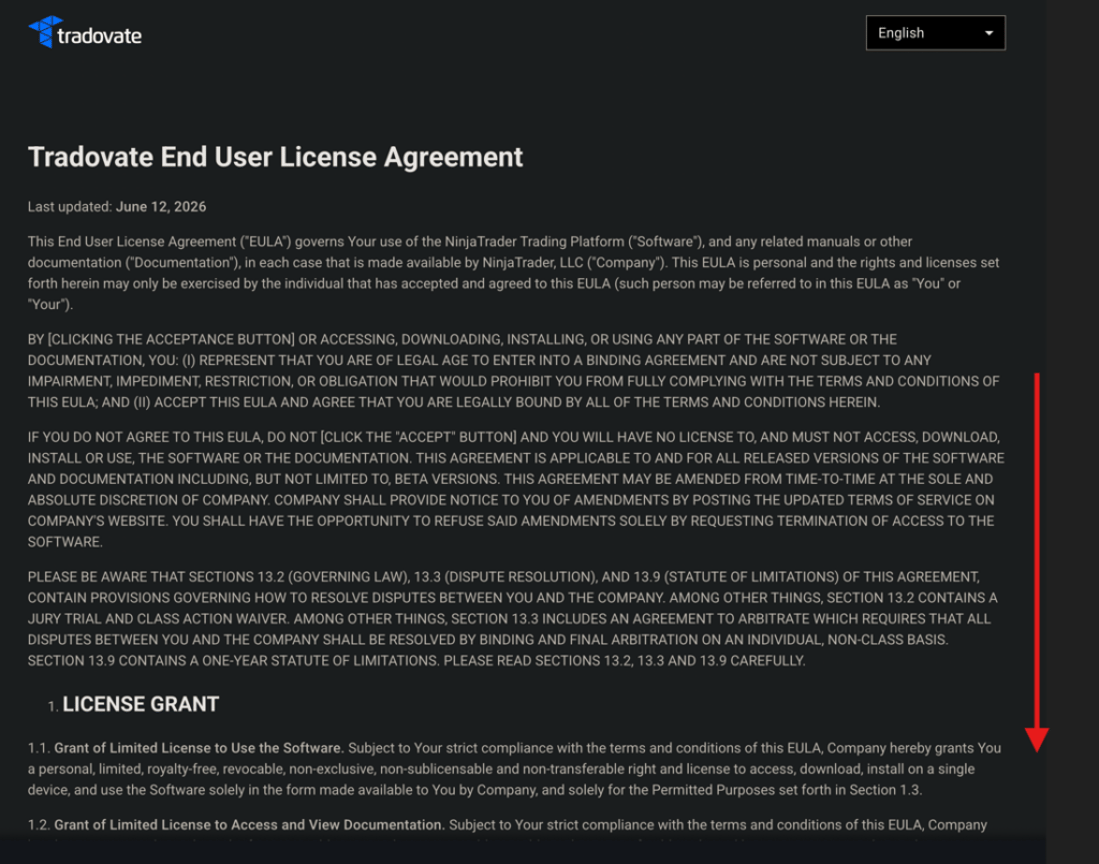
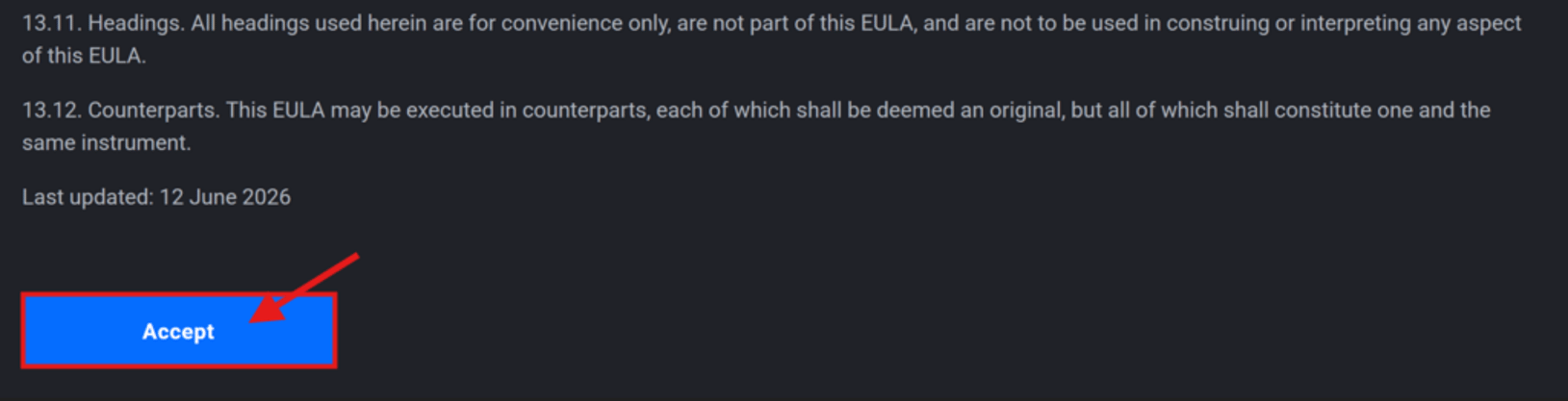
After you have signed the exchange agreements, your market data activation process will begin. Depending on demand, market data activation typically takes 10 to 90 minutes.
Please wait at least 90 minutes after signing the exchange agreements before submitting a Help Desk ticket regarding missing live market data.
Access Your Trading Account
Once your data has been activated, your funded or evaluation accounts will appear under the Simulation section.
Select Start Simulated Trading to access your trading account dashboard:
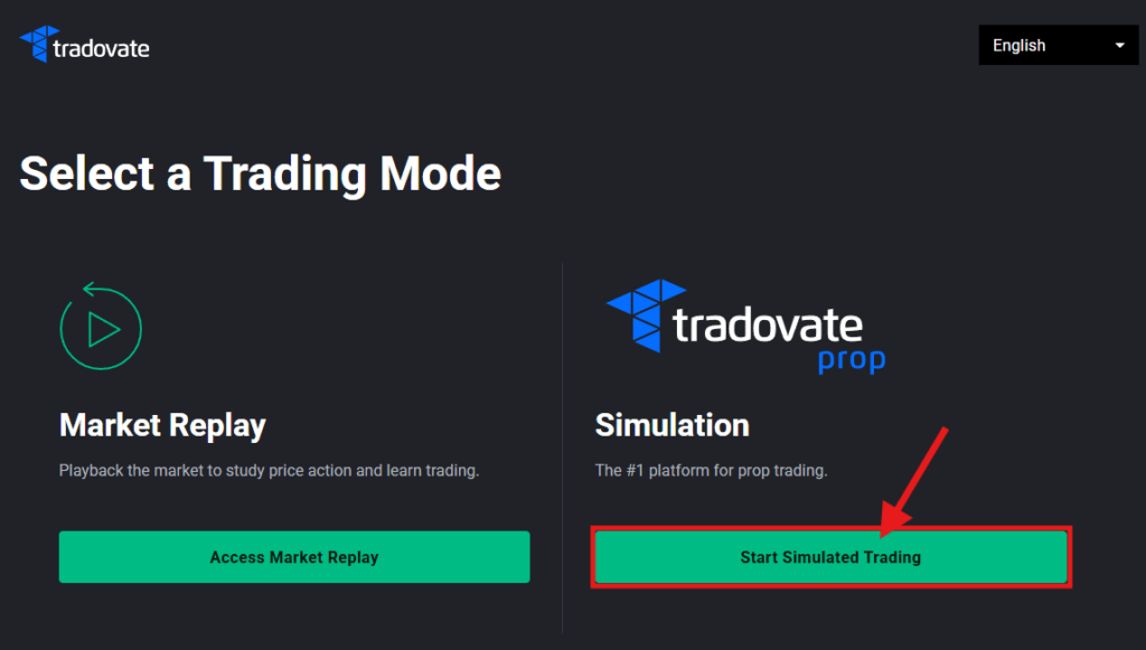
A one-time “Welcome to Tradovate Prop” introduction page pop-up will appear listing what’s now included with Tradovate Prop. Please read through it and hit “Continue”:
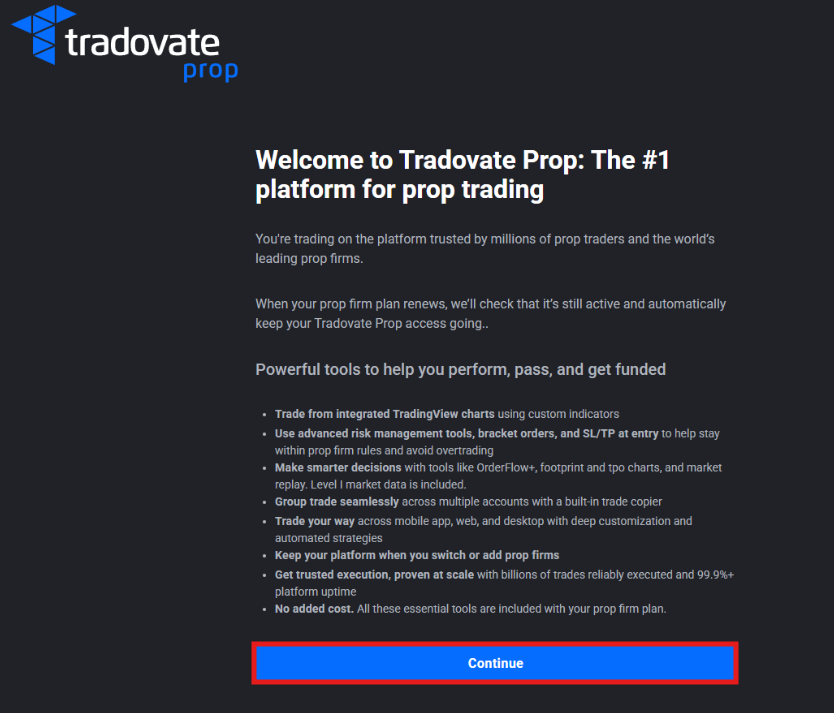
This is your Tradovate dashboard, where you can monitor your account and begin trading.
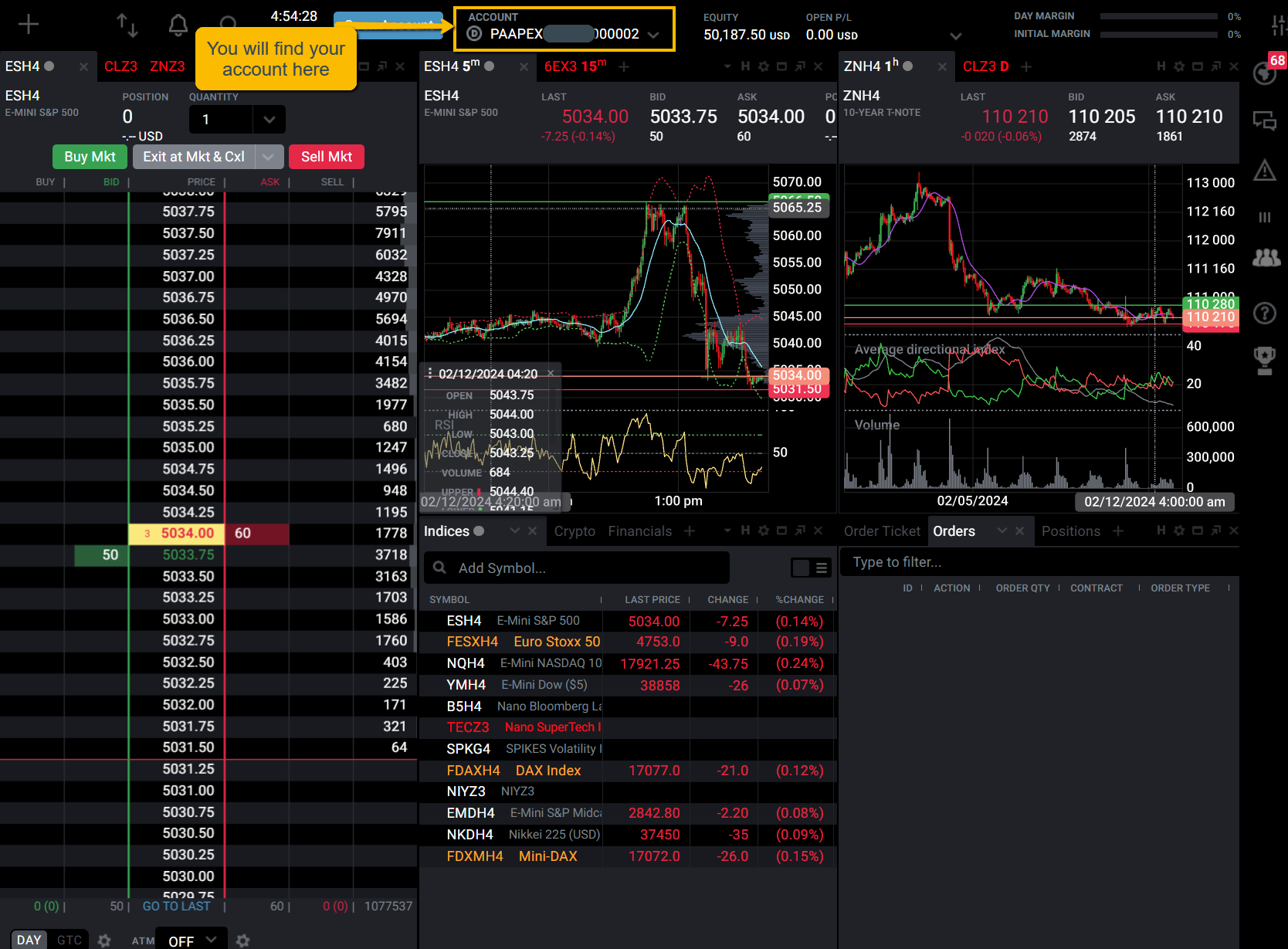
To learn more about customizing your workspace, charts, and dashboard, visit the Tradovate Support article: Here
Trading Directly on Tradovate
- After your data is activated, you can trade directly on the Tradovate web-based platform: trader.tradovate.com.
- Please keep in mind that market data can take up to 90 minutes to be activated after signing the above agreements
Tradovate Platform Requirements
- Max Drawdown Monitoring: Always check your trailing max drawdown in your native Tradovate dashboard. The auto-liquidation threshold reflects this value.
- Account Monitoring: Keep Tradovate open to monitor your balance and max drawdown, and as a backup for closing trades if needed. Stay aware of the trailing threshold.
- API Limit: If you are copy trading multiple accounts, be mindful of the API Limit for position management. To learn more, see our FAQ article: Tradovate API Request Limit