
Introduction: Welcome to WealthCharts!
WealthCharts provides a competitive edge by delivering instantly available trading ideas, in-depth research, and advanced tools based on proven strategies used by top traders worldwide. Whether you’re logging in for the first time or reconnecting, this guide will help you set up WealthCharts and integrate your Apex accounts seamlessly.
Logging Into Your Apex Trader Funding Account
To get started with your brand-new Apex Trader Funding account on WealthCharts, follow the video below! It provides a step-by-step guide to the installation, configuration, and utilization of key features, aiming to enhance the user experience and proficiency with the platform.
After watching this video, you’ll have everything you need to get up and running with your Apex Trader Funding account on WealthCharts. It’s designed to simplify the setup process and help you get comfortable with all the tools you’ll be using. Check it out and start exploring today!
Broker Portfolio
The Broker Portfolio is the window where you can monitor your active positions and any orders placed. For ease of use, this component is split into two tabs that are available at the top: Positions and Orders.
Open Positions
Here, details are available about any positions that your trading account may be carrying at this time.
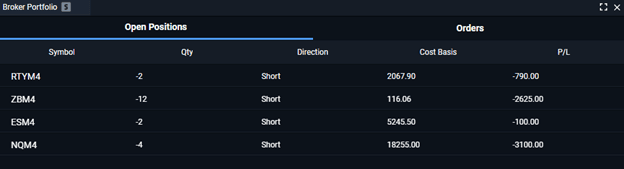
Each position listed here has the following data available:
Symbol—which symbol is being traded.
Quantity—how many shares/contracts have been acquired in this trade. If this is a sell trade, a “-“ (negative) sign will precede the amount.
Direction—tells you whether this is a short or a long trade.
Cost Basis—the entry price of the trade.
P/L—shows the trade’s current profit/loss balance.
Orders
This window offers a detailed description of all the orders on this account, both active and those that have already been filled or canceled. Any orders that are still active will also have a “cancel” button next to them.
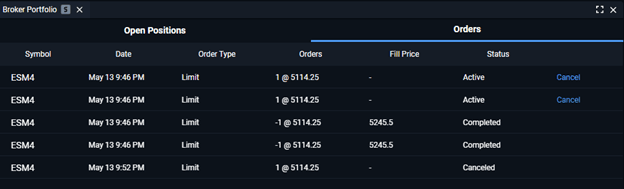
Each of the orders on this list will also have some details available.
Symbol—which symbol is being traded.
Date—the date and time when the order was placed.
Order Type can be a limit, a stop, or a market order.
Orders—this is the size of the order and the price level it was set at.
Fill Price—the price level at which this order was filled.
Status—the order’s current status: Active, Completed or Canceled.
Pre-made Apex Layouts
In this quick 1-minute video below, you’ll discover how Apex brings Pre-made Apex Layouts, insights, and features designed to help you make smarter, faster decisions in the market. Whether you’re a seasoned trader or just starting, Apex is here to supercharge your WealthCharts experience. Check it out and see how it can transform the way you trade!
Now that you’ve explored the features Apex brings to WealthCharts, you’re equipped to make more confident and efficient trading decisions. No matter your experience level, Apex layouts are designed to enhance your workflow and take your trading to new heights!
Liquidation Indicator
In the video below, you’ll get a step-by-step walkthrough of the Liquidation Indicator, a tool designed to visualize your liquidation point in the market. The tutorial covers everything from how to set up the indicator to practical tips for using it effectively in your trading strategy. This video provides clear guidance to help you make more informed decisions.
With the Liquidation Indicator tutorial, you now have a clear understanding of how to set it up and integrate it into your trading strategy. This powerful tool provides valuable insights, helping you better visualize your liquidation points and make more informed decisions in the market.
Wrapping it up
By now, you’ve explored the key components and tools available to optimize your Apex Trader Funding experience on WealthCharts. From setting up your account and understanding the Broker Portfolio to utilizing Pre-made Apex Layouts and mastering the Liquidation Indicator, each section equips you with practical knowledge to elevate your trading.
Whether you’re just getting started or refining your strategies, these resources are designed to simplify processes, enhance insights, and empower smarter decision-making. Dive into these tools and take full advantage of the features at your fingertips to maximize your trading potential!
WealthCharts Platform Requirements
- Max Drawdown Monitoring: Always check your trailing max drawdown in your native WealthCharts dashboard. The auto-liquidation threshold reflects this value.
- Account Monitoring: Keep WealthCharts open to monitor your balance and max drawdown, and as a backup for closing trades if needed. Stay aware of the trailing threshold.