
Below are screenshots of common error messages, along with solutions to fix the error.
|
1) bad input (Logon failed) 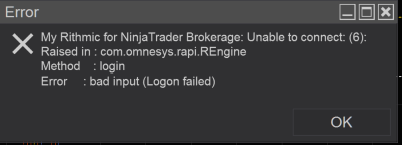 |
This error indicates that your credentials are blank in your |
|
2) session count to exceed its maximum 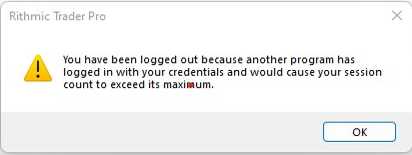 3) disconnect enforced by broker 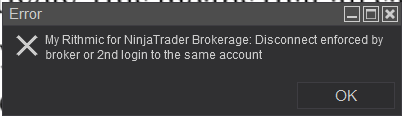 |
Make sure you have your settings set correctly. You market |
|
4) check your account connection parameters and internet 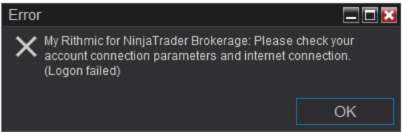 |
Open Ninja, delete your APEX “My Rithmic for NinjaTrader |
|
5) Order can be placed by administrators only 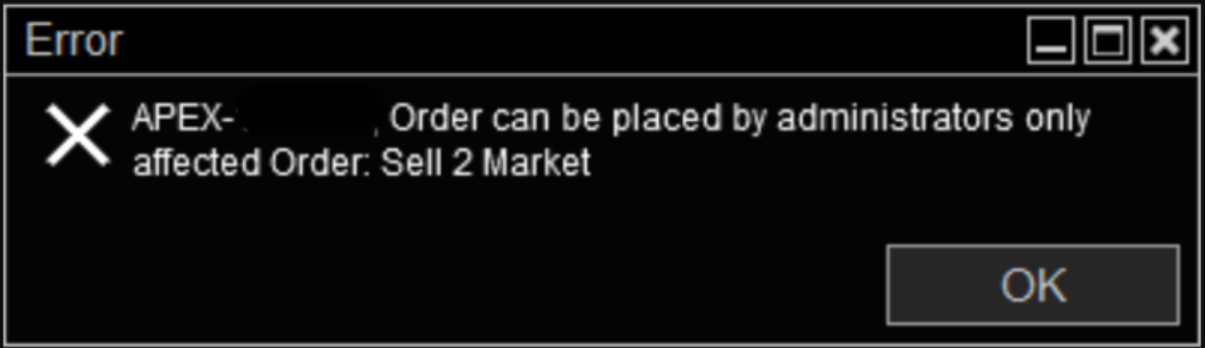 | This means your account hit the drawdown and has been liquidated. For more informationCLICK HERE. |
|
6) The OCO ID cannot be reused 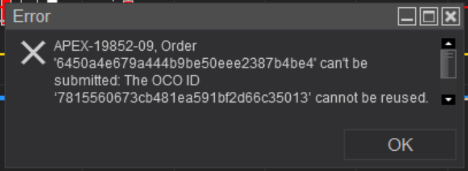 | This means that the OCO mode is activated, resulting in the cancellation of the initial OCO order. Press CTRL Z on your keyboard to turn off OCO mode. By doing this, you will see that the small green “OCO” icon is no longer active. CLICK HERE. |
|
7) toolkit version has expired 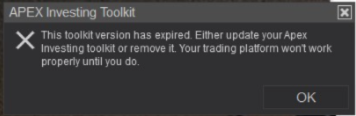 | This is an error message about a product from Apexinvesting.com. Please reach out to them HERE. |
|
8) Unable to submit order – no handle affected 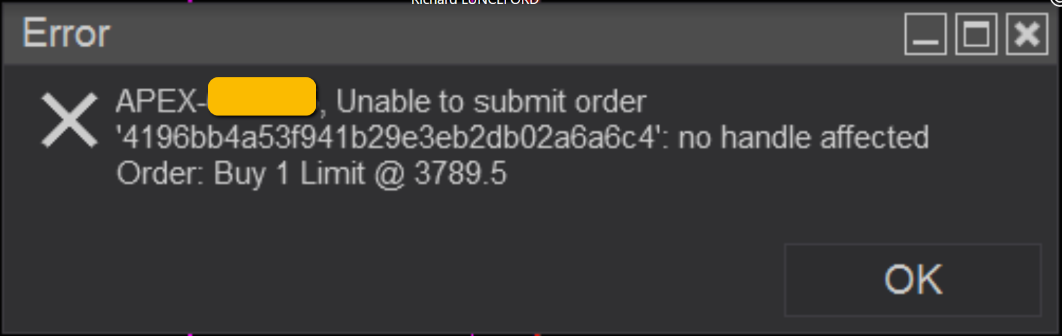 | Disconnect from your “MY Rithmic for NinjaTrader Brokerage” and reconnect. |
|
9) Remove failed 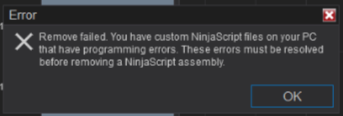 |
An error exists in your custom indicators. |
|
10) Send cancels only after 30 secs 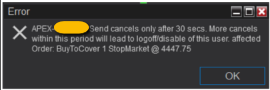 | This message is a native error indicating that you have sent too many cancellation requests in quick succession. You need to wait 30 seconds before sending any more cancellations, or else the system will log you out. Whenever this message occurs, we strongly advise the user to contact their broker about the message because it can indicate your account needs additional configuration. Otherwise, you will likely continue to experience this behavior and risk getting locked out of your account. |
|
11) No such route exists 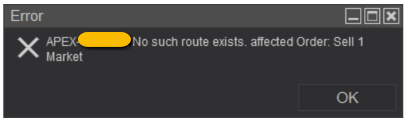 | Uninstall NinjaTrader 8 and reinstall the newest version. CLICK HERE |
|
12) The IB you are trying to connect is not authorized 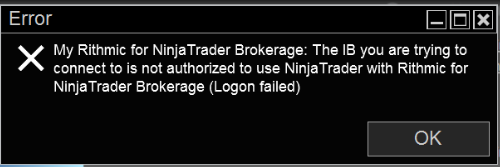 | Restart your NinjaTrader8. |
|
13) thrown by the target of an invocation 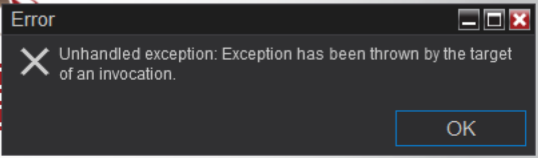 | Close your application, reboot your machine, and restart NinjaTrader 8. |
|
14) can’t have a zero limit price 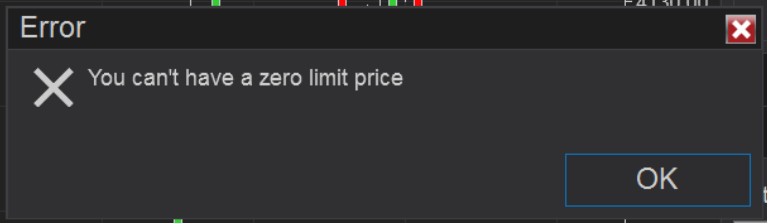 | Disconnect from your “MY Rithmic for NinjaTrader Brokerage” and reconnect. |
|
15) Unable to connect to DB 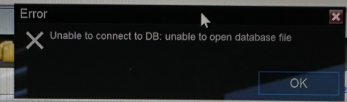 | If you are a Mac user running Parallels, you will need to install NT8 8.0.26.1 version instead of 8.0.27.0. |
|
16) Rejected at RMS 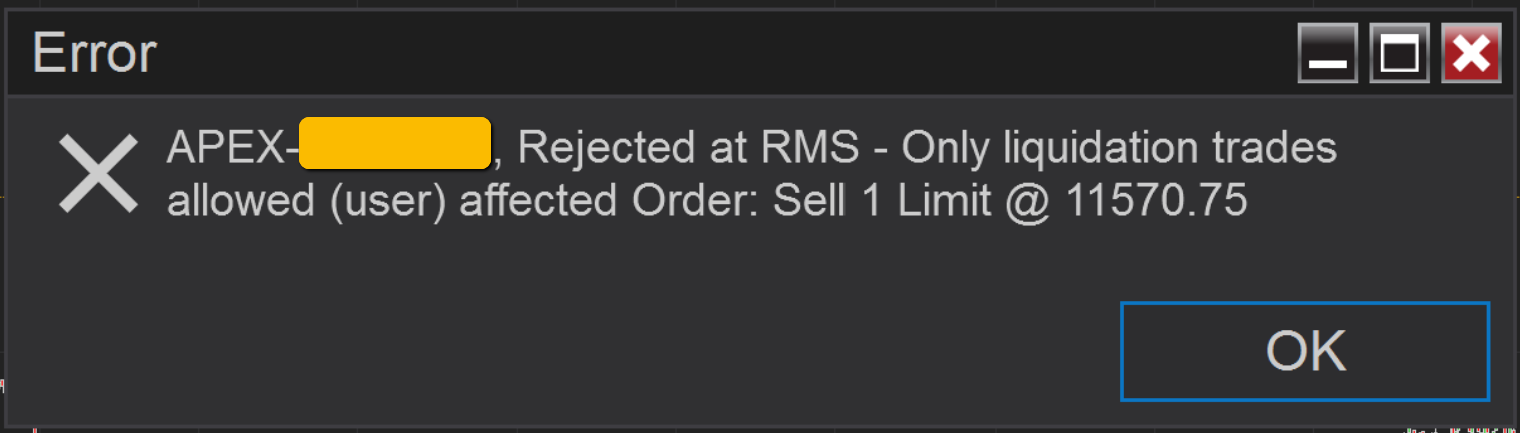 |
You will need to uncheck Liquidating Only option in your 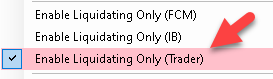 |
|
17) You must set a date for TIF=GTD 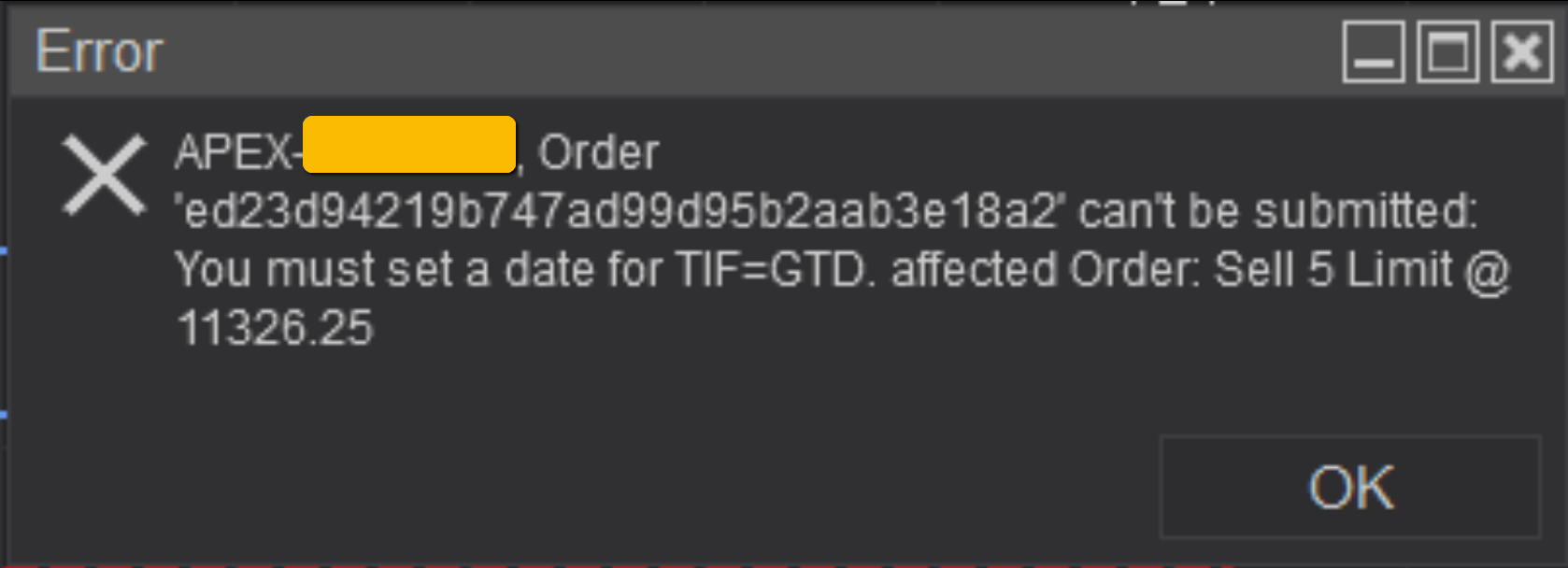 | You have the TIF (Time in Force) set to GTD (Good ‘Til Date) without inputting a date. Either enter a date, select GTC or Day for the TIF. |
|
18) market not open 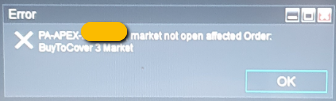 | This means that you are trading an expired contract. Check CME Group Futures for the current contract month for the instrument. To see how to roll your contracts, CLICK HERE. |
|
19) Historical data failed to start 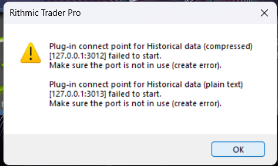 | You need to turn your market data OFF. Please CLICK HERE to see the instructions and follow every step as shown. |
|
20) Auto log failed 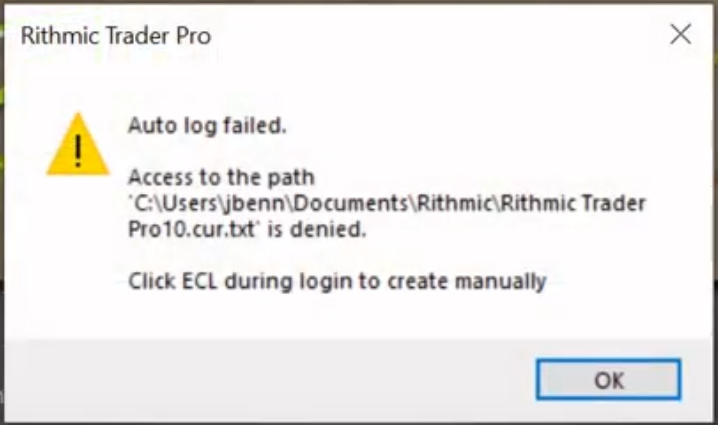 | Locate the folder in the path described. Right click onto folder and UNCHECK “read only”. |
|
21) Unable to load risk template 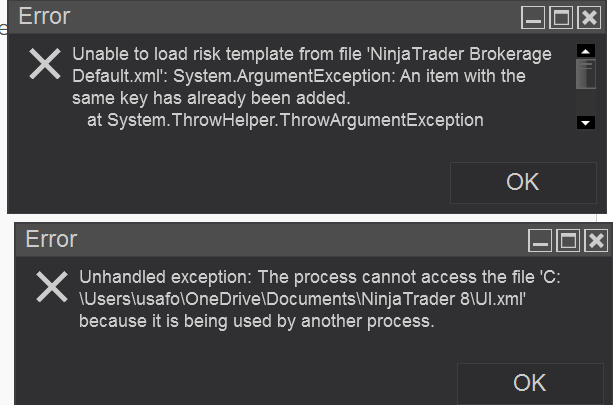
| Close NinjaTrader. Navigate to: DocumentsNinjaTrader 8templatesRisk folder. Then delete the NinjaTrader Brokerage Default.xml file. Next, restart NinjaTrader to resolve your first issue. Visit this page for information regarding OneDrive and NinjaTrader. |
|
22) Unable to recover NinjaTrader custom assembly 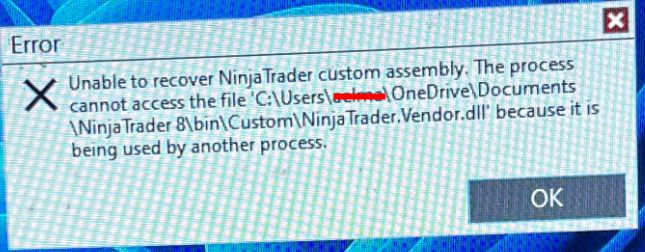 |
This error shows that another application on your PC is blocking
Visit |
|
23) No accounts were found 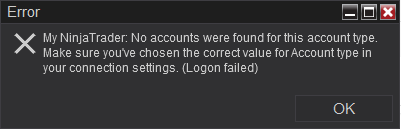 | This error means that you do not have any active Tradovate accounts. |
|
24) account is currently set to liquidation 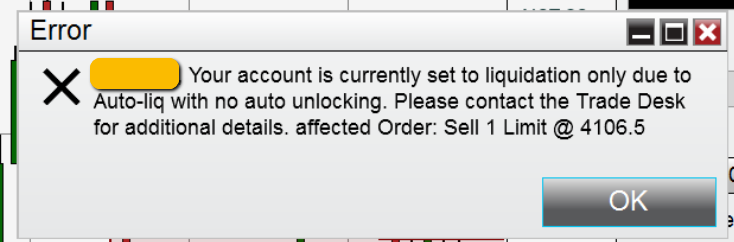 | Your Tradovate account on Ninja has hit the drawdown and needs to be reset. |
|
25) Atomic order operation in progress 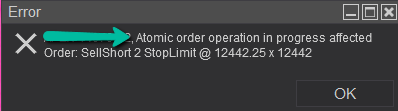 | The error generally occurs when another action is taken on an order that is currently being changed/filled/cancelled. Modifying an order in the process of change/fill/cancel is not possible until the initial action is finished. To prevent the error, wait until the initial action completes |
|
26) Instruments not subscribed for real-time data 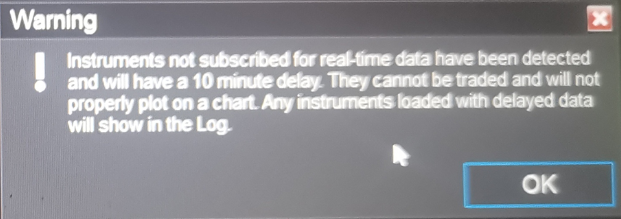 | It’s not an error, just a warning indicating that NinjaTrader has pre-loaded instruments not included in your data package. Trading those instruments is not possible in our accounts, and any data displayed would be delayed. |
|
27) Password should be specified 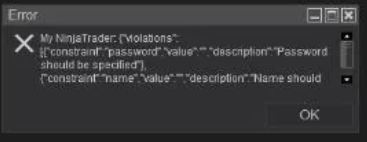 | Too many incorrect login attempts. – To fix this, close NinjaTader. Then go to Documents NinjaTrader8 DB, then delete the .sqlite file. You may also need to remove all of your existing connections and reconnect. |
|
28) get_order_book error : 13 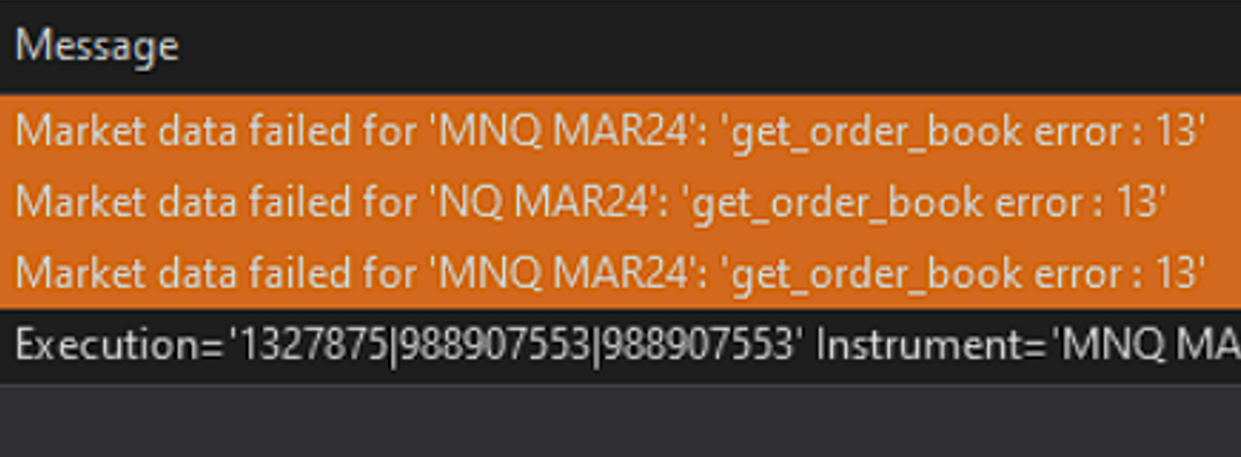 | Error Message: Market data failed get_order_book error: 13 – This indicates missing level 2 data. You must add level 2 data for order book. For Rithmic, under Rithmic Addons. For Tradovate, on their web platform, go to Settings, Subscriptions, and add level 2 data. |
|
29) already has a running connection 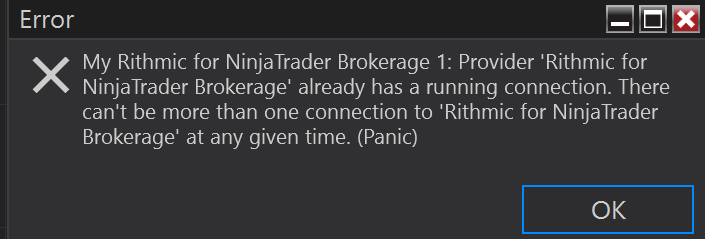 | Error Message: Provider ‘Rithmic for NinjaTrader Brokerage’ already has a running connection. It shows that there are multiple occurrences of the Rithmic connection. Remember to select the Remove option next to any previous connection that was made. |
|
30) Error fetching external content 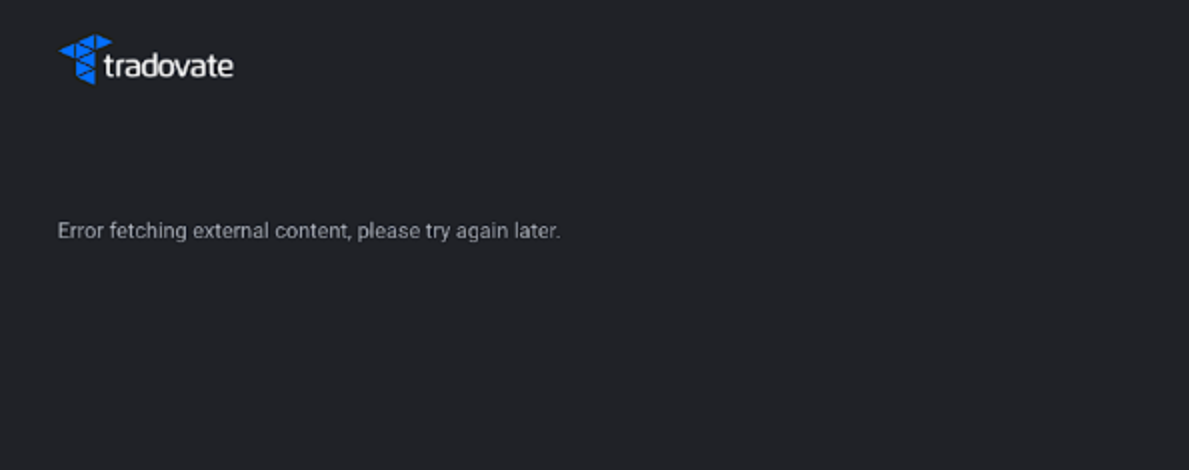 | Error Message: Error fetching external content, please try again later. Manually set your computer’s clock to Eastern Time Zone to fix this error. |
|
31) Unable to re-establish the connection. (Panic) 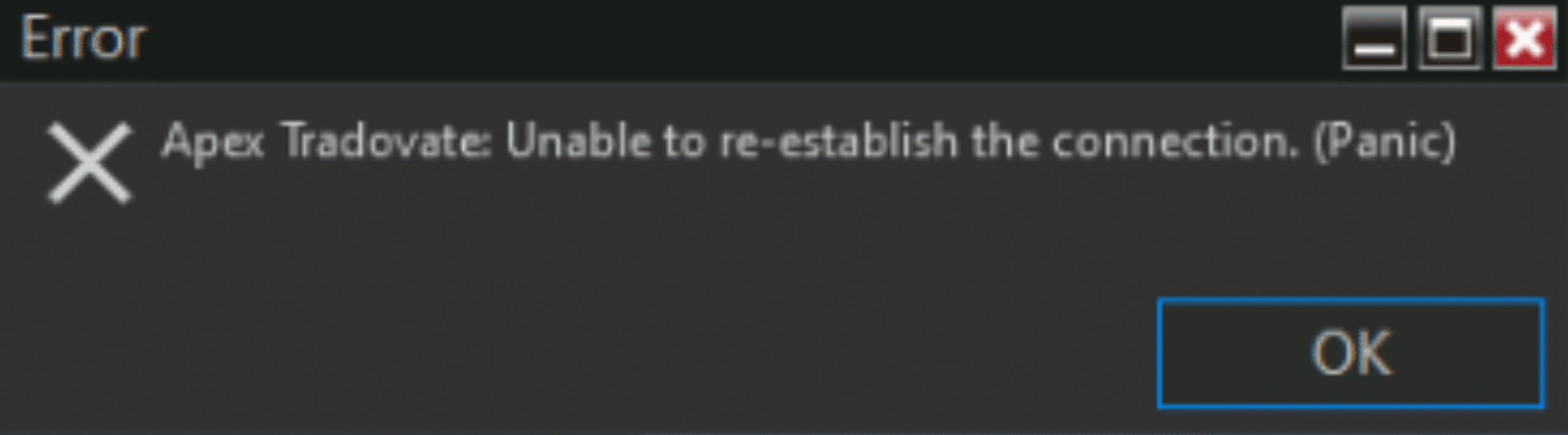 |
Error Message: Unable to re-establish the connection. (Panic) Visit |