
Setting Up NinjaTrader with Tradovate Accounts
Visit NinjaTrader’s Website:
Go to ninjatrader.com.
Open an Account:
Click on Open Account.

Provide Your Email:
Enter your email address.
You will receive an activation link in your inbox.
Activate Your Account:
Click the activation link in the email.
Note: If you receive a message that your email is already in use, use a different email address to sign up for the risk-free trial and access the NinjaTrader dashboard.
Downloading and Installing NinjaTrader 8.1
Access the Risk-Free Trial:
After logging in, click on Try risk-free simulated trading.
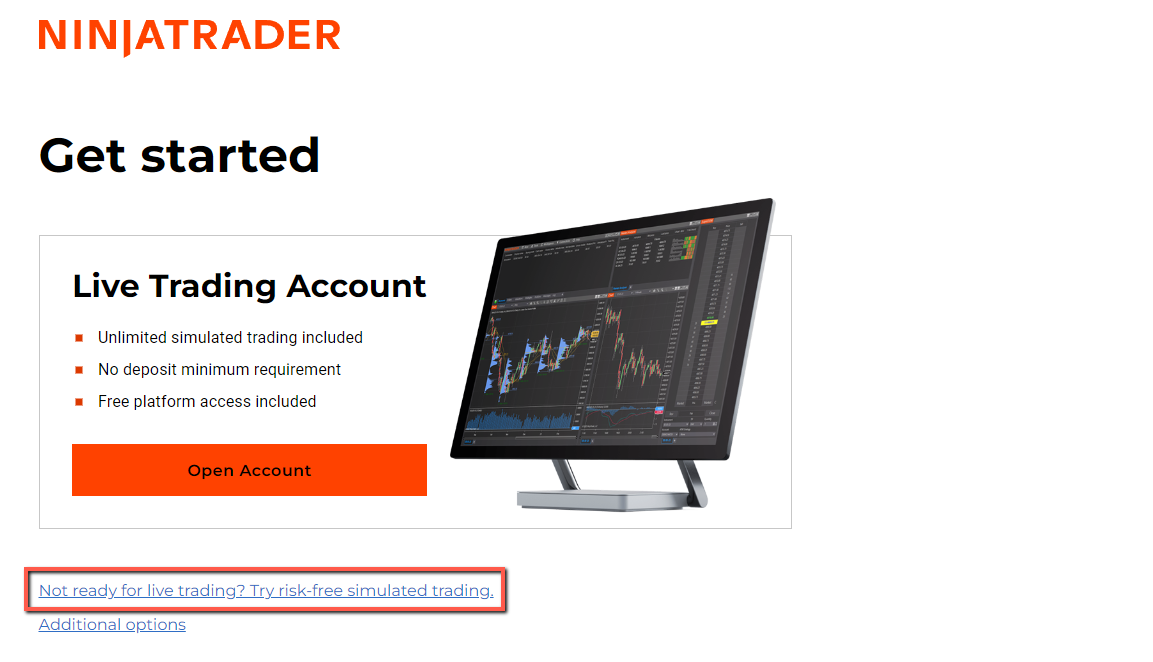
Complete the Form:
Fill out the required information.
When prompted to choose between Desktop or Web, you can close the dialog box.
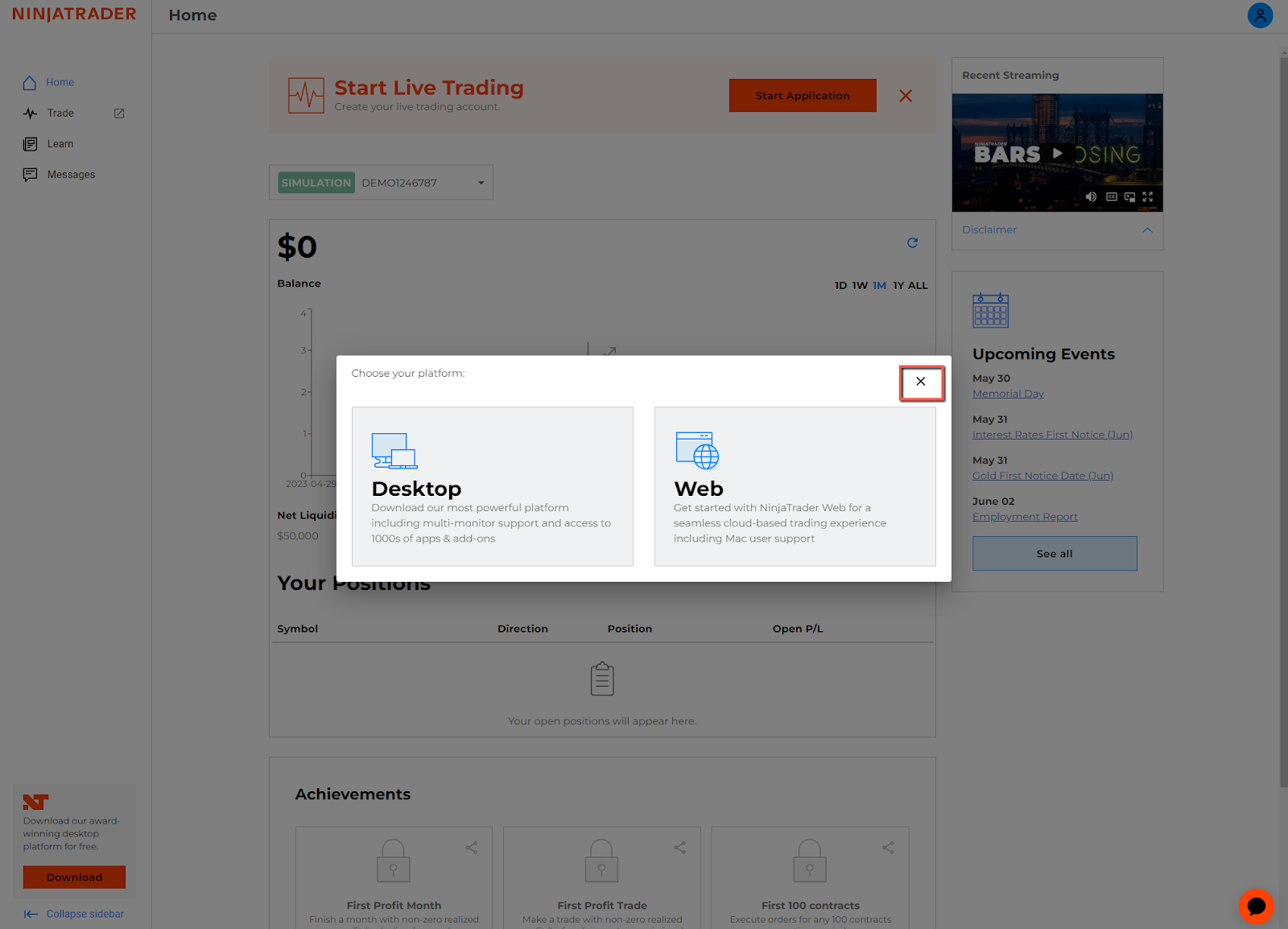
Download NinjaTrader:
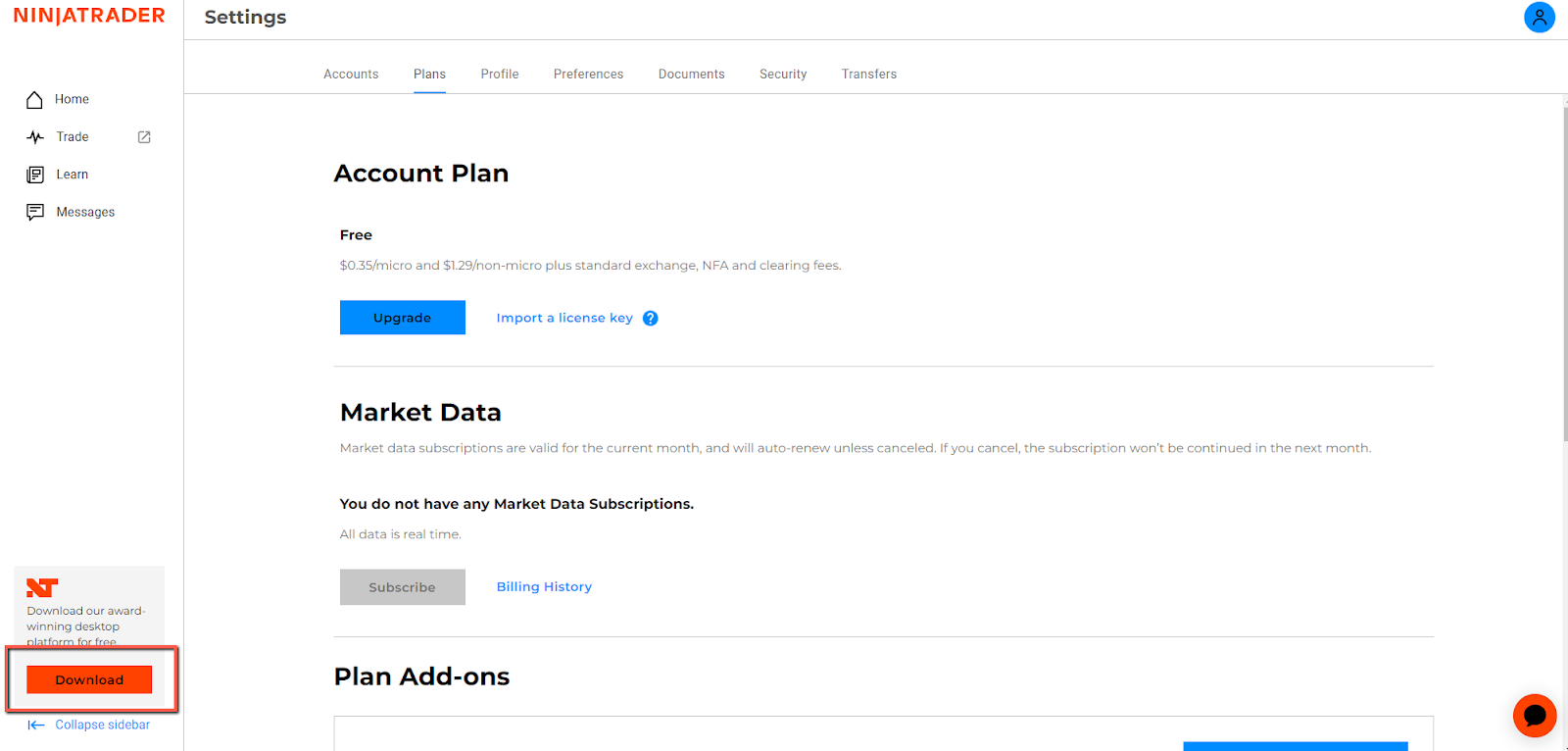
Click on the Download button located at the bottom left of the dashboard.
Download the Most Recent Release of NinjaTrader.
Configuring NinjaTrader Settings
Access Preferences:
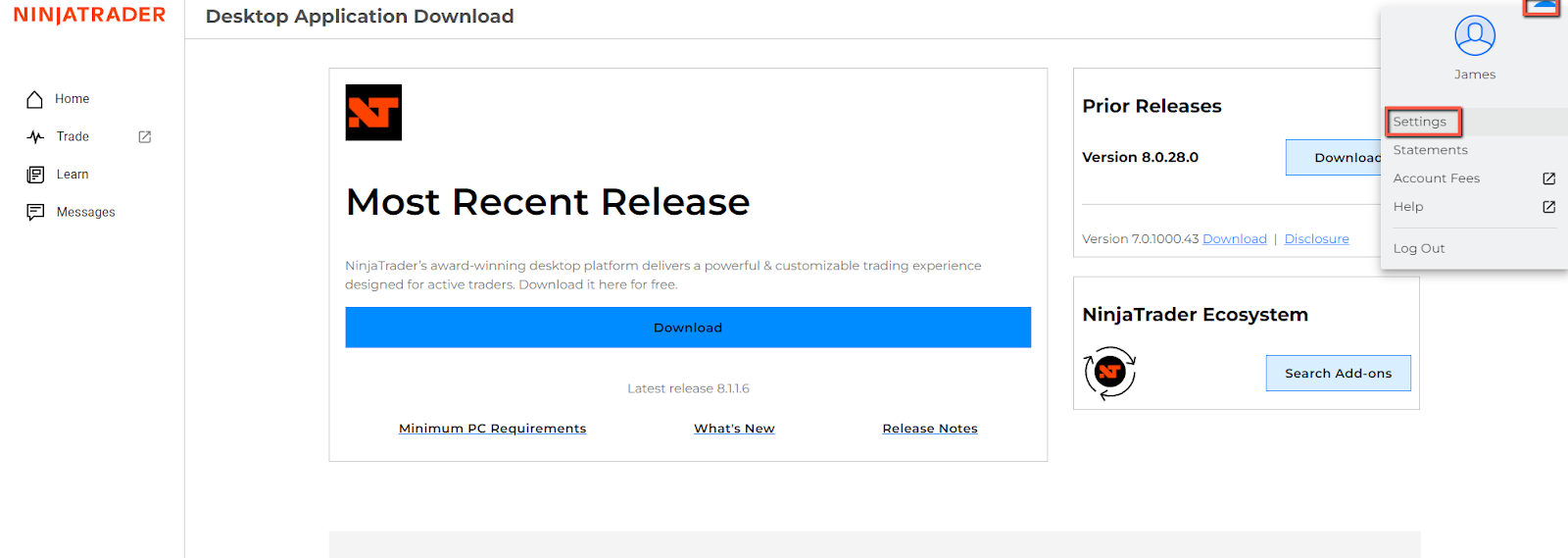
Click on your profile icon at the top right corner of the NinjaTrader online dashboard.
Select Settings.
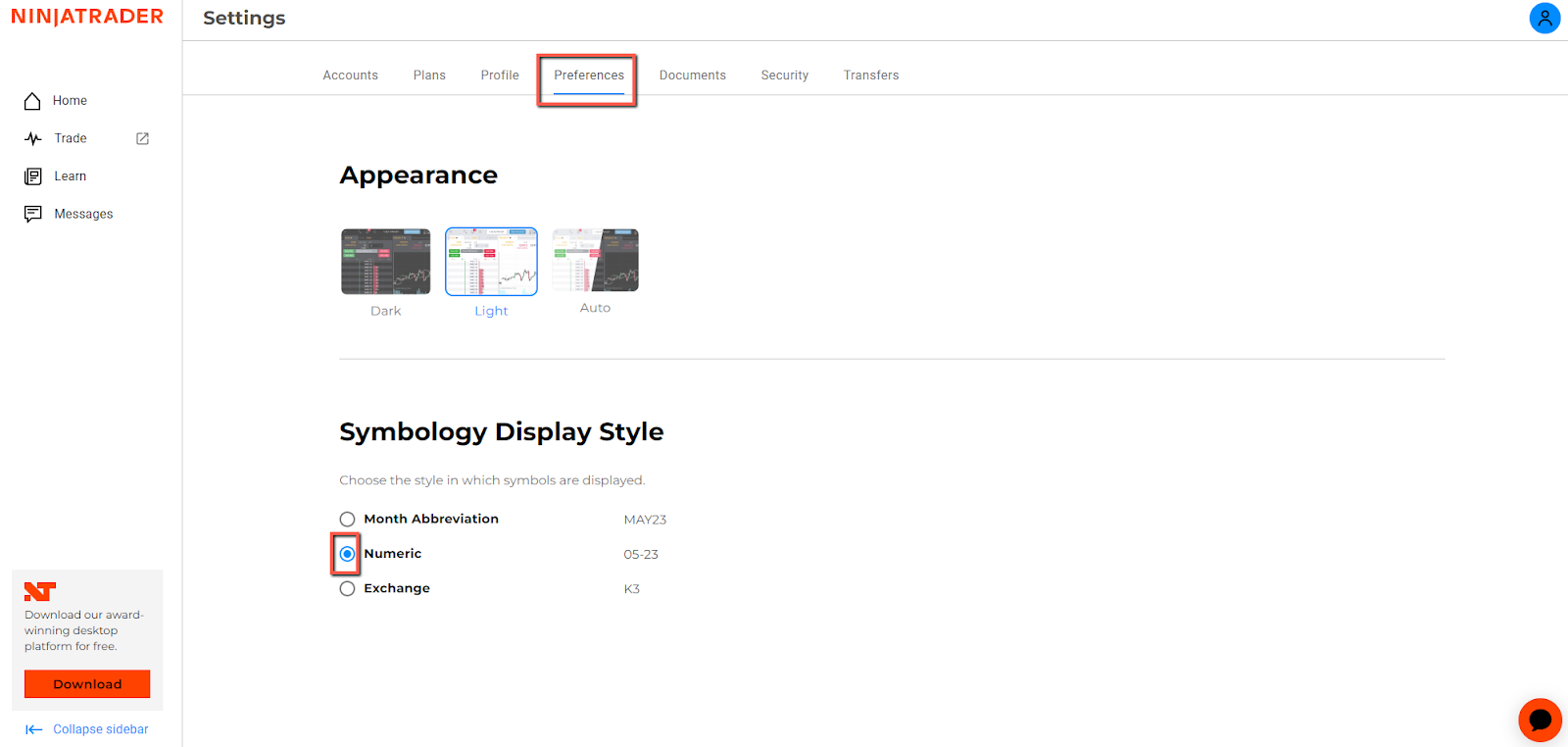
Set Symbology Display Style:
Navigate to Preferences.
Under Symbology Display Style, select Numeric.
Save the changes.
Connecting to Your Tradovate Account in NinjaTrader
Install NinjaTrader:
Run the installer you downloaded earlier.
Open NinjaTrader after installation.
Log In to NinjaTrader:
Enter the username and password you created for your NinjaTrader online account.
Click Log In.
Note: You will need to enter these credentials each time you start NinjaTrader.
Select Simulation Mode:
If a Live or Simulation dialog box appears, select Simulation.
Apex Trader Funding accounts operate in simulation mode.
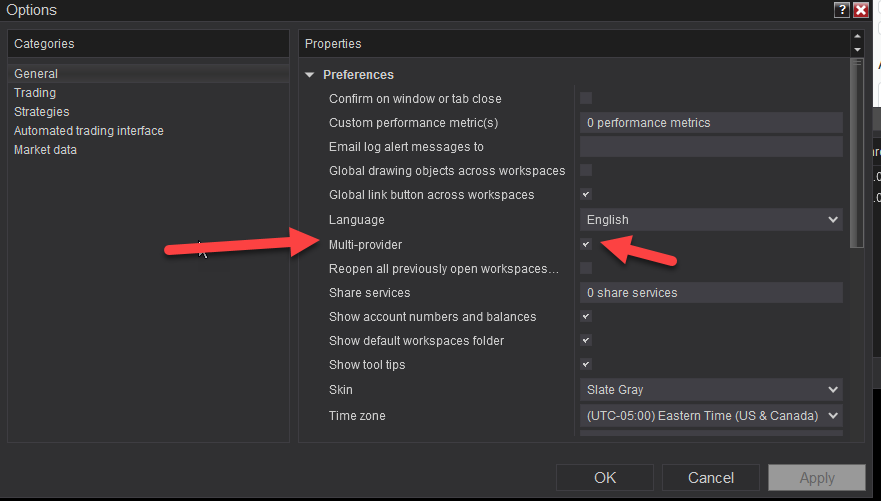
Enable Multi-Provider Mode:
In the NinjaTrader Control Center, go to Tools > Options > General.
Check the box labeled Multi-provider.
Click Apply, then OK.
Restart NinjaTrader to apply the changes.
Configure Connection:
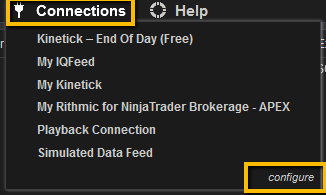
After restarting, go to Connections > Configure.
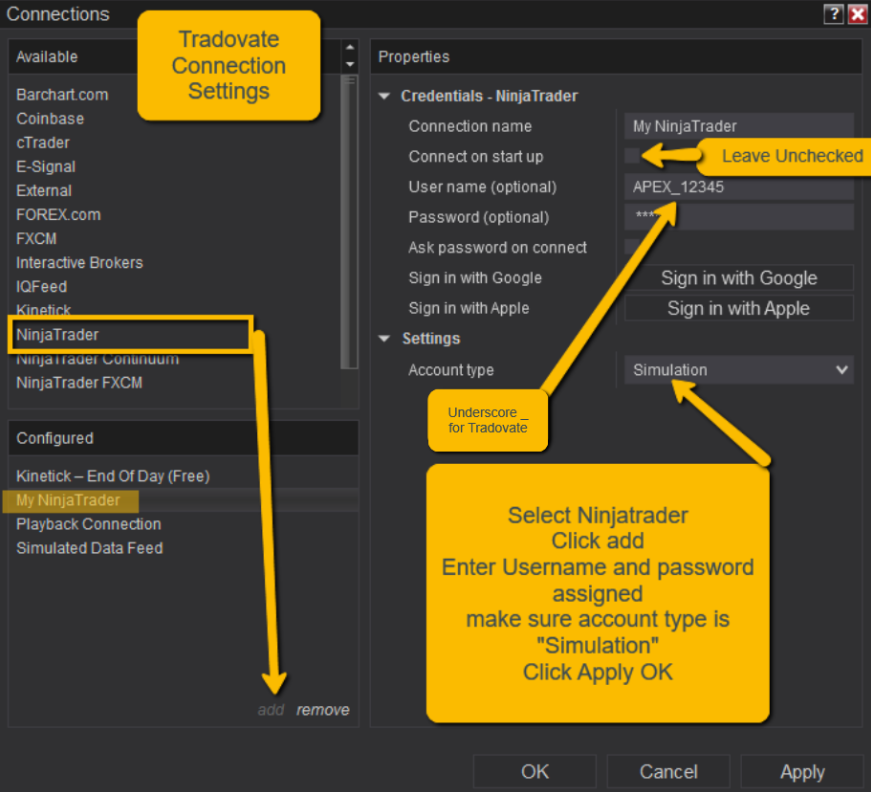
In the Available list, select NinjaTrader, then click Add.
In the Properties section:
Username: Enter your Tradovate username (from Apex Trader Funding dashboard).
Password: Enter your Tradovate password.
Click Apply, then OK.
Establish Connection:
Go to Connections and select the connection you just created (e.g., My NinjaTrader).
Your Tradovate accounts should now load within NinjaTrader.
Note: If you need additional guidance, please refer to any setup videos or resources provided by Apex Trader Funding.
Common Error: “Input string was not in a correct format.”
- Issue:
- Encountering the error message: “Input string was not in a correct format.”
- Solution:
- Adjust Symbology Display Style:
- In NinjaTrader, go to Settings.
- Select Preferences.
- Under Symbology Display Style, change the setting to Numeric.
- Save the changes.
- Restart NinjaTrader.

If you encounter issues not covered in this guide, consider contacting the help desk of Apex Trader Funding, NinjaTrader, or Tradovate, as appropriate.
By following this guide, you should now have NinjaTrader 8.1 set up and connected to your Tradovate account, ready for trading. Always ensure that all information is entered correctly and consult official resources or support if you face any difficulties.