
To connect Tradovate to TradingView, you must have an active, tradable account.
Instructions:
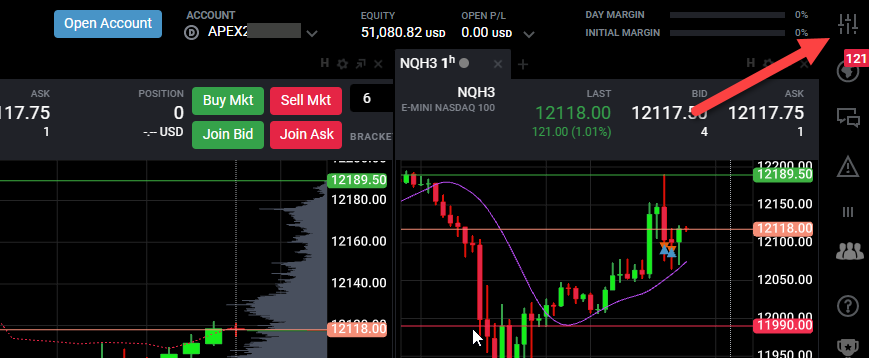
1. Click on the Tradovate application settings.
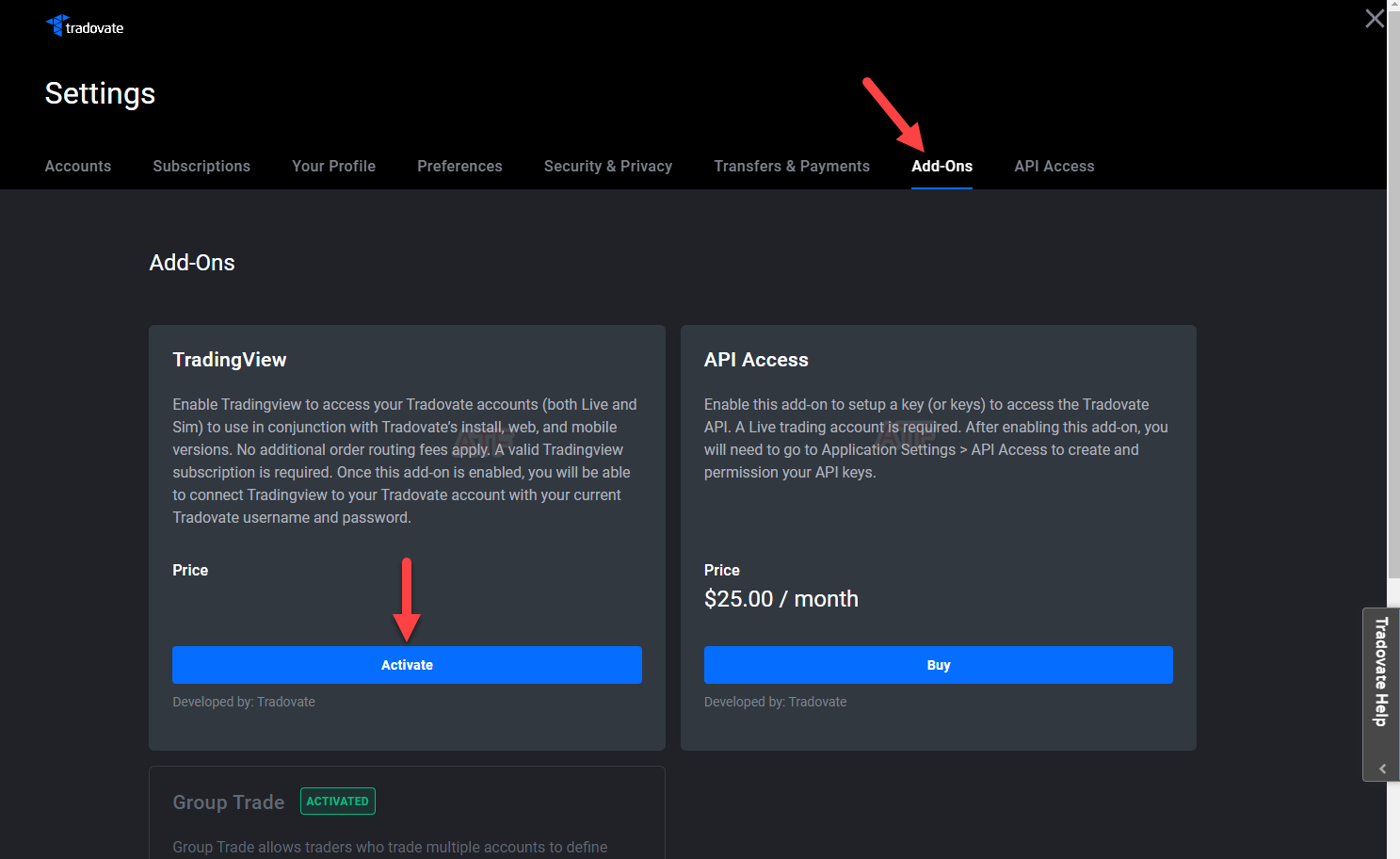
2. Click on the Add-Ons tab, then click on Activate in the TradingView frame.
Please note: If TradingView is not enabled for free, it can take four hours or more for your Tradovate account to be fully activated and enable TradingView for free. It is included in your Tradovate subscription with us.
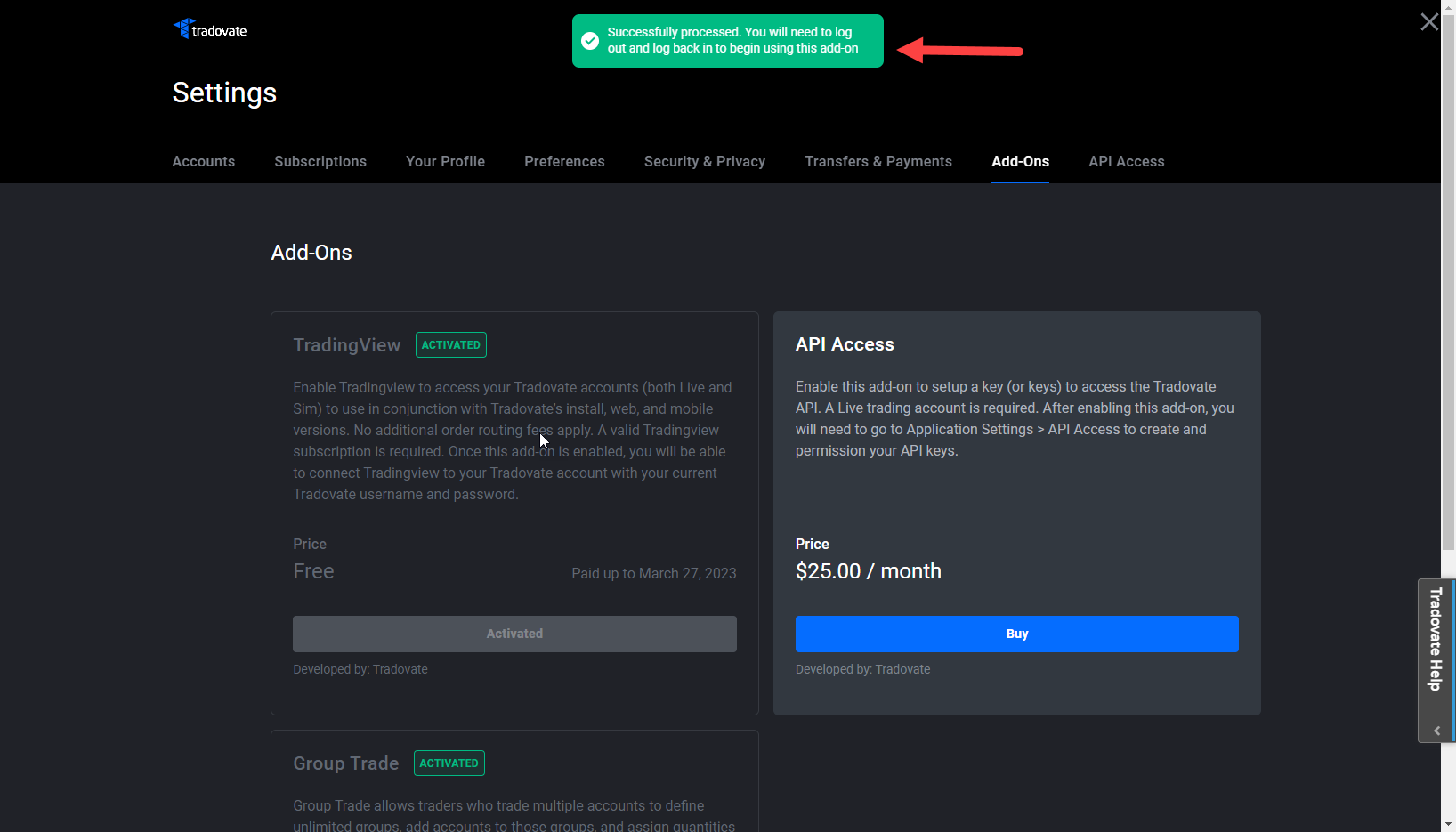
3. Log out and back into Tradovate for the activation to take effect.
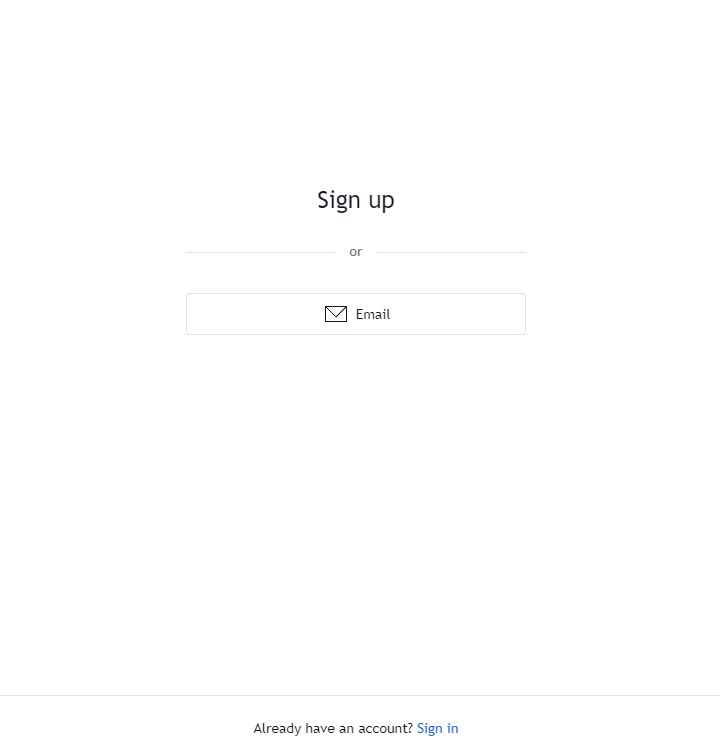
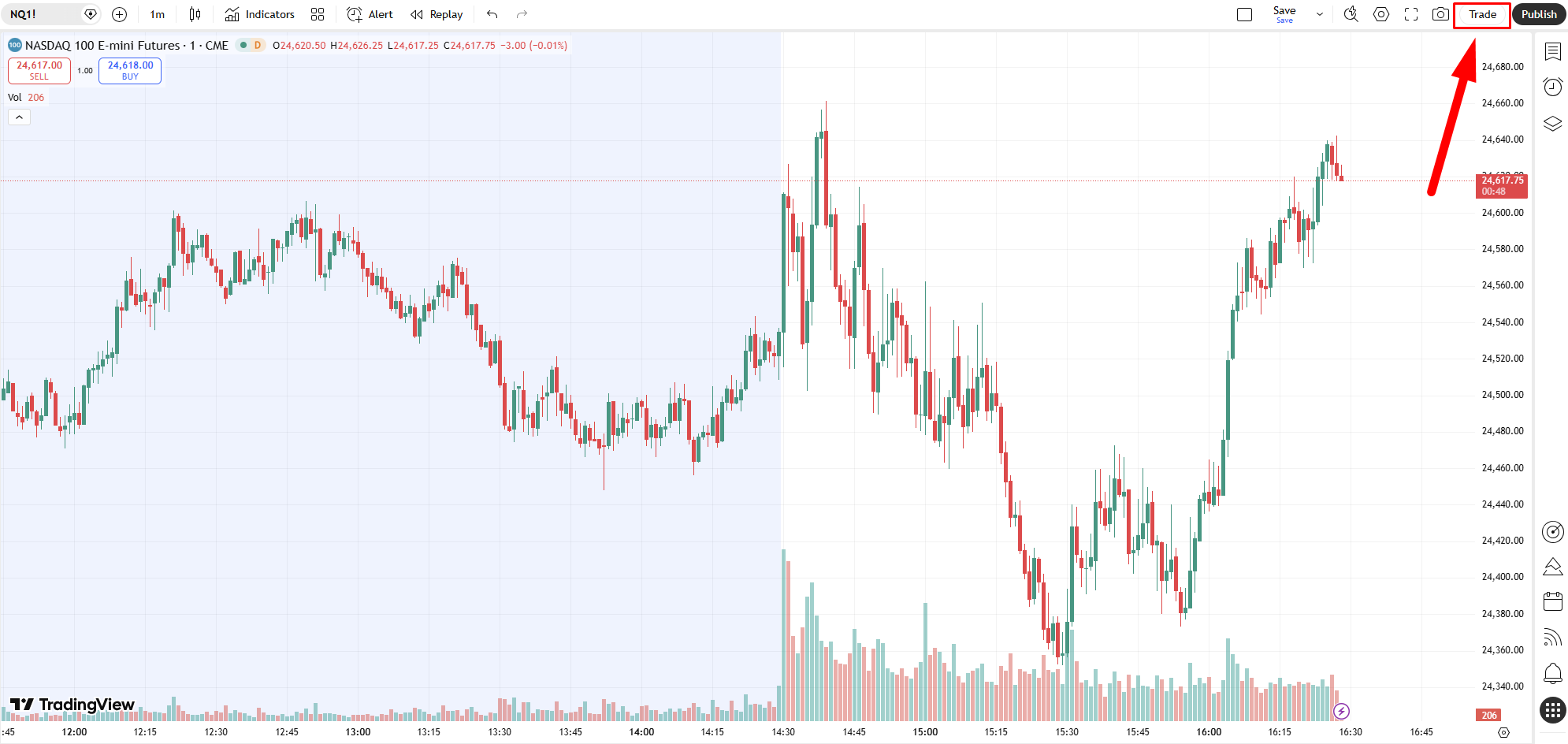
4. Next, go to the TradingView website and sign up or log into your TradingView account. After logging in, click on the Trade button in the top right corner.
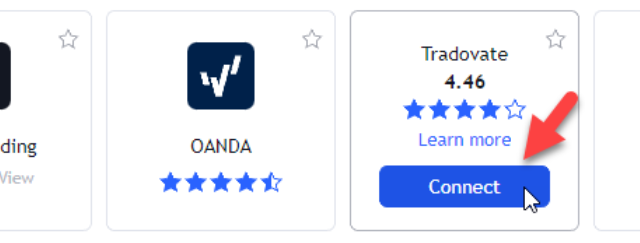
5. Move your mouse over the Tradovate icon and click the Connect button.
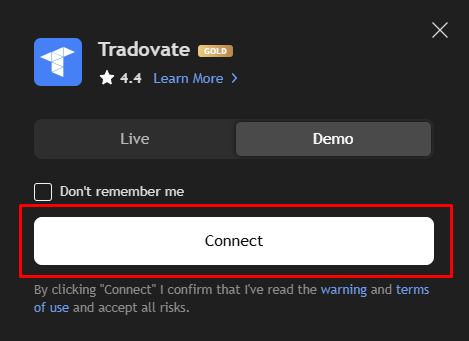
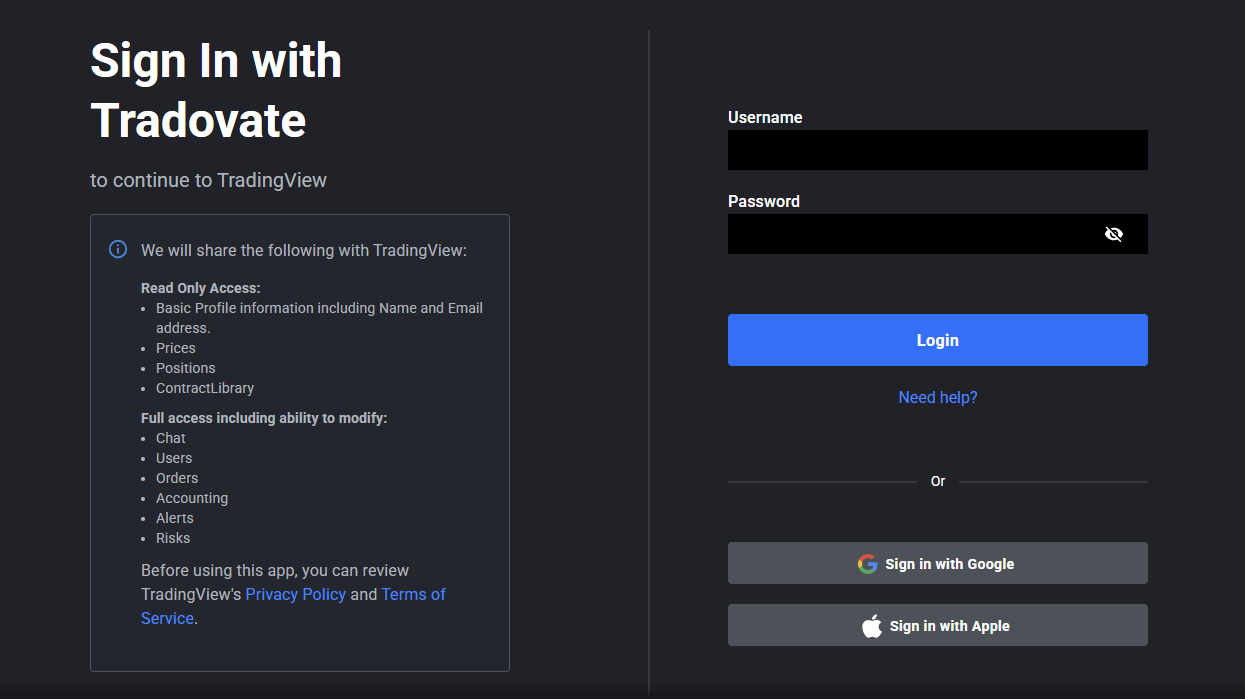
6. Select the Demo option and click Connect. You will then be redirected to the Tradovate website to log in to your account.
For further help in setting up charts and indicators in TradingView, contact TradingView Support.
Possible Issues
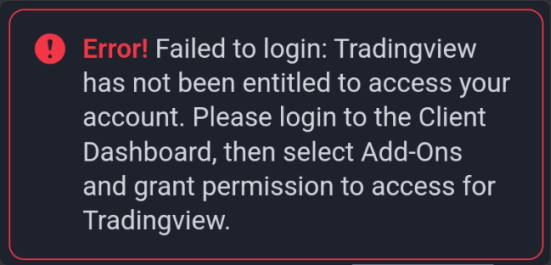
Failing to follow the instructions given above in this article can result in seeing errors like:
- TradingView x Tradovate access entitlement
- Add-on section shows “TradingView Add-On is charging me $9.99.”
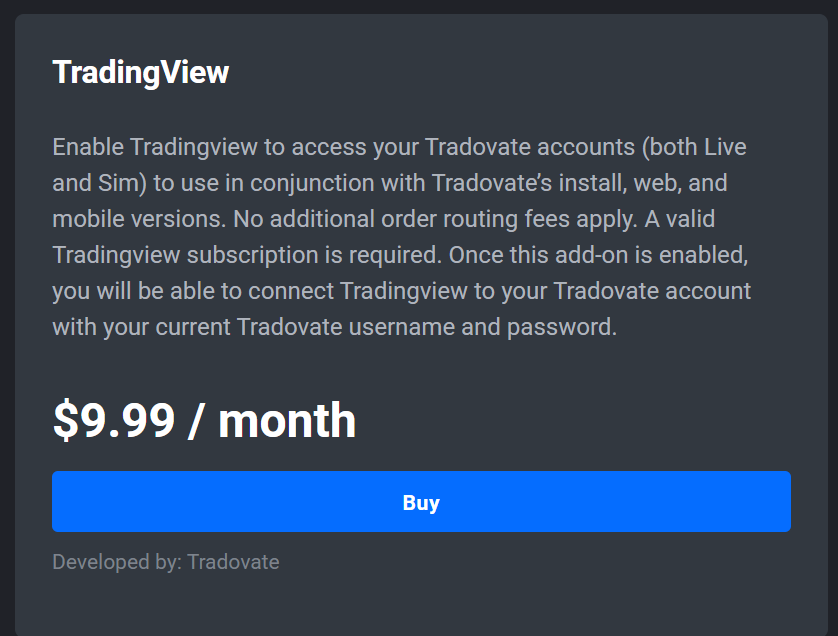
Ensuring you have an active and tradable account allows you to use the TradingView service for free, but you must remember to renew your subscription every month. Please note that the free TradingView add-on via Tradovate includes data that updates every 5 seconds on the TradingView Chart. For continuous data, you are required to purchase a TradingView subscription.