If you are an existing user
If you are an existing user with our version of Rithmic RTrader Pro already set up and connecting, skip to the next section: “NinjaTrader Setup”
If you are a new user
If you have just purchased your first Rithmic account(s) from Apex Trader Funding, please follow these instructions before going through the NinjaTrader setup.
Step 1 – Uninstall other versions of RTrader
If you have any other version of RTrader on your computer, you must uninstall it completely and delete the related Rithmic folder (as shown in the Apex setup guide).
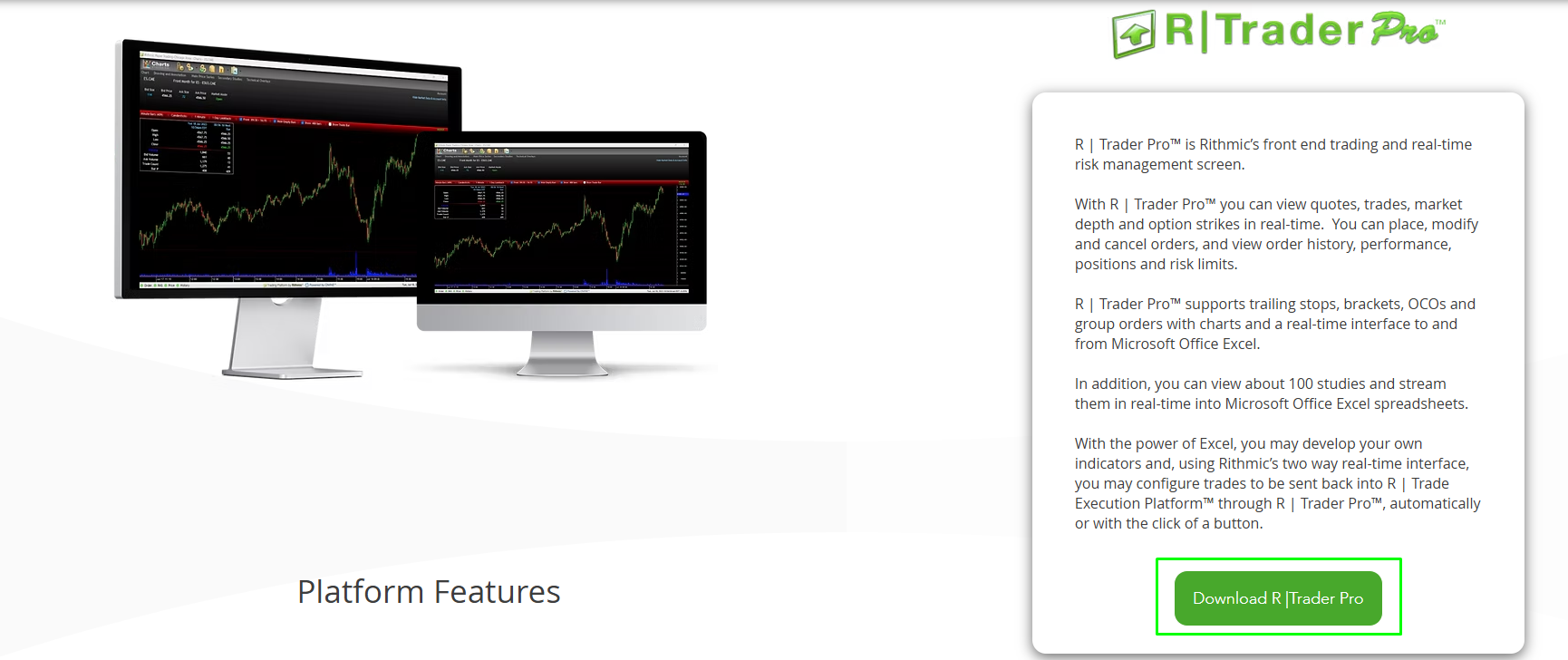
Step 2 – Download Rithmic RTrader Pro
Download and install the correct version of Rithmic RTrader Pro using this link: https://www.rithmic.com/products/r-trader-pro
Step 3 – Locate your credentials
Your username and password can be found:
- In your Apex welcome email, or
- Inside your Apex Trader Funding User Dashboard, under the “Rithmic Account” section:
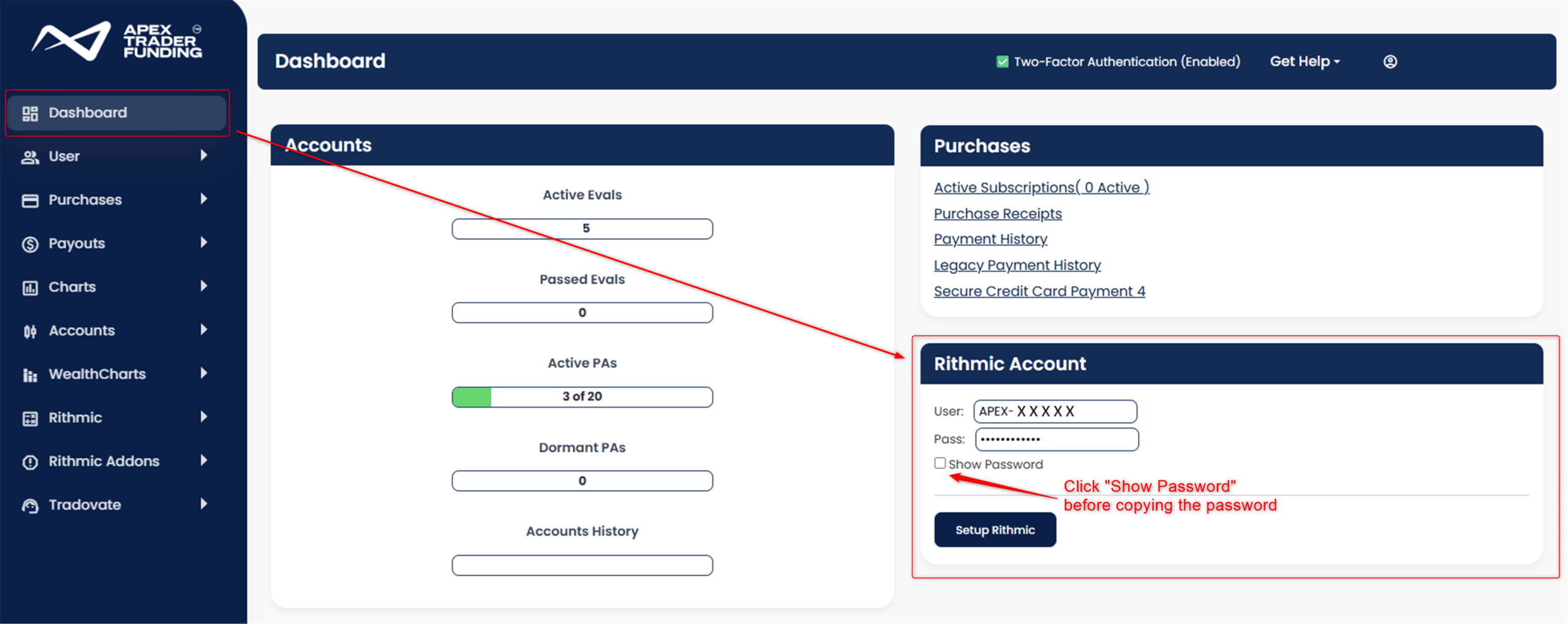
NOTE: Please be sure to first click the “Show Password” checkbox as shown above to display the actual password before copying
Step 4 – Log in with your credentials
Copy and paste your Rithmic username and password from your Apex welcome email or on your Apex Dashboard. Make sure NOT to copy any extra spaces before or after your login details, as this can cause connection errors.
Rithmic RTrader Pro Settings
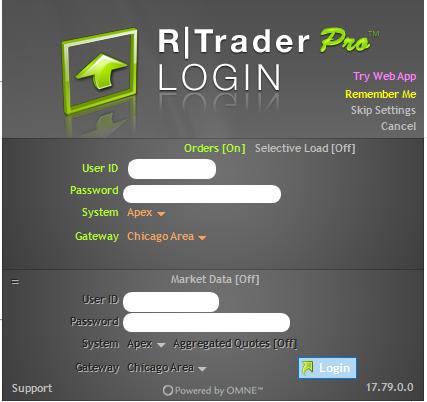
After completing the installation and login steps, configure your RTrader Pro as follows:
- Open your RTrader Pro application.
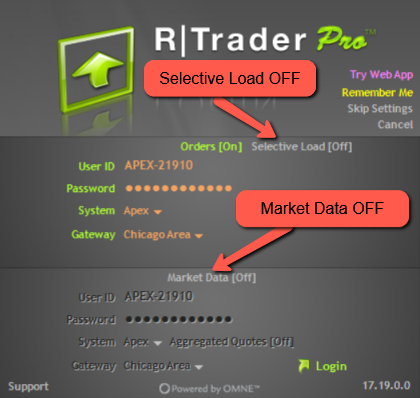
- Click “Skip Settings” in the top-right corner.
- Leave Selective Load turned OFF.
Copy and paste your Rithmic ID and password carefully — make sure there are no accidental spaces.
- Your Rithmic ID and password are stored [HERE].
- Under System, select APEX.
- Under Gateway, choose the Area closest to you.
Leave Market Data set to OFF.
- Rithmic allows only one Market Data session at a time. If you’re logged in on another platform (e.g., NinjaTrader), that counts as your session. To use two sessions with Market Data, you’ll need the “Rithmic 2nd Login Session” add-on.
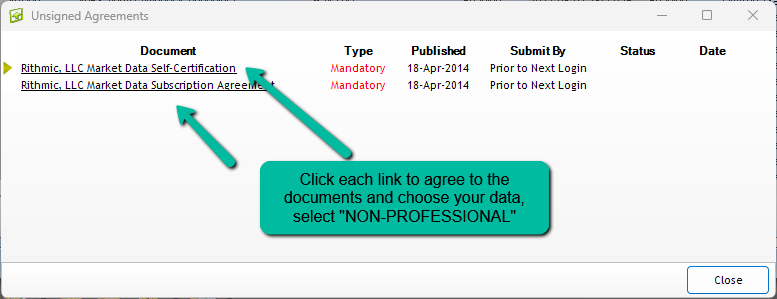
Click LOGIN, and sign the two (2) mandatory agreements shown for ALL NEW USERS upon first login.
- When prompted, select NON-PROFESSIONAL for data classification, unless you do not meet the criteria of a non-professional. In order to be considered a non-professional, you must (1) be an individual or small business entity using market data solely for your own personal, non-commercial use; (2) not be registered or licensed with any securities, futures, or commodities regulatory authority; (3) not be a member or seat holder of any exchange; (4) not work for, or act on behalf of, any business engaged in brokerage, banking, investment, or financial activities; and (5) not trade or manage assets for any third party.”
Watch the 2 Minute Video Tutorial
NinjaTrader Setup
To connect your Rithmic account to the NinjaTrader platform, follow this guide HERE.
RTrader Platform Requirements
- Max Drawdown Monitoring: Always check your trailing max drawdown in your RTrader dashboard. The auto-liquidation threshold reflects this value.
- Account Monitoring: Keep RTrader open to monitor your balance and max drawdown, and as a backup for closing trades if needed. Stay aware of the trailing threshold.