NinjaTrader Download
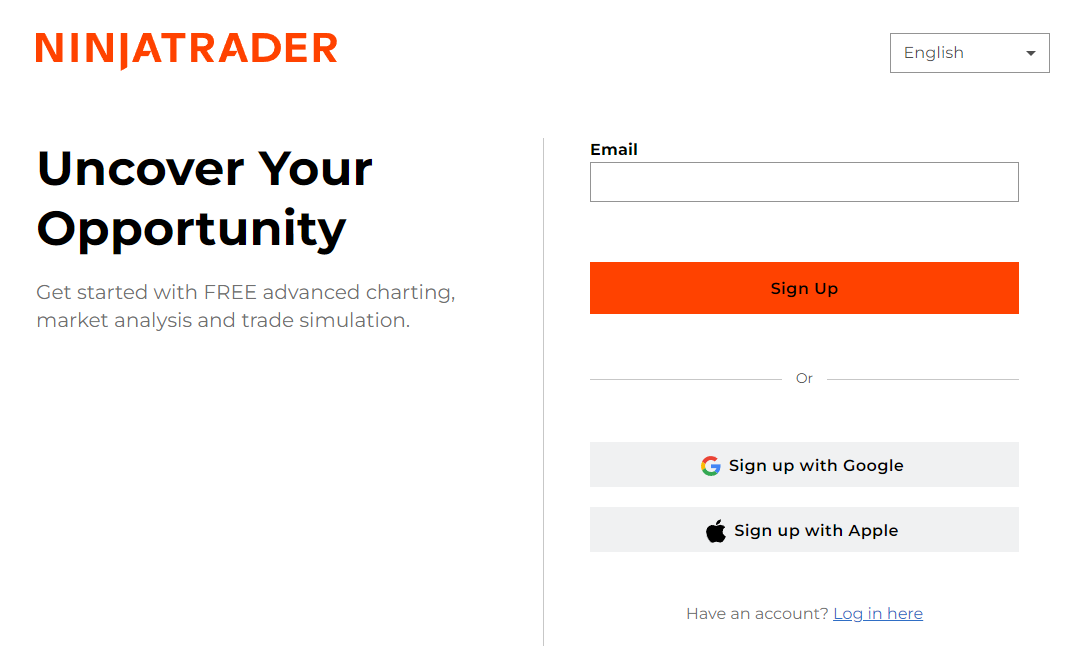
Go to https://account.ninjatrader.com/register.
- Enter your email and click Sign Up.
- Do NOT use “Sign Up with Google” or “Sign Up with Apple.”You must manually input your email address to receive the setup link.
- Disable any ad blockers or pop-up blockers.If you encounter issues, try using a different browser (Chrome, Edge, or Firefox).
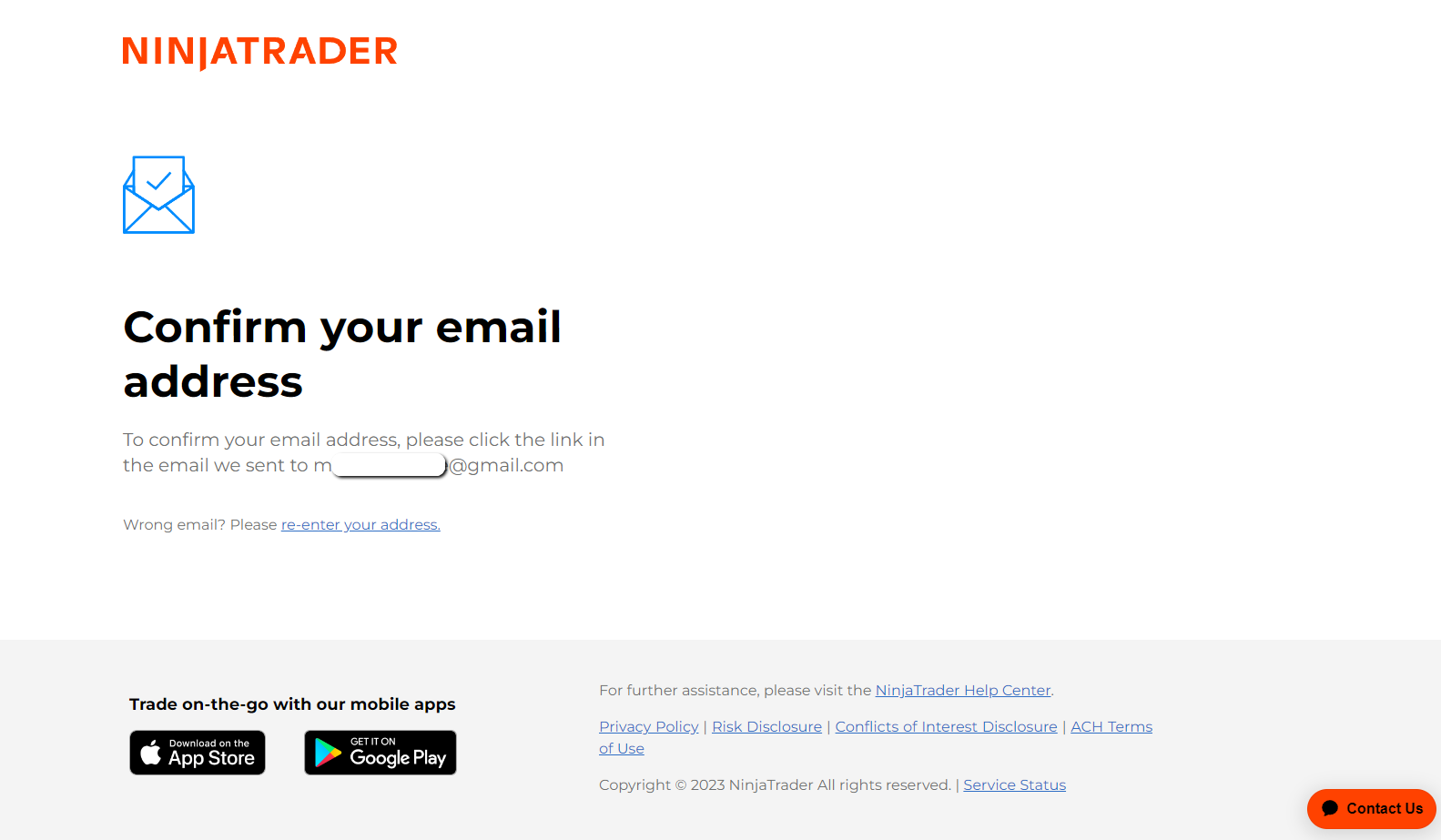
2. A confirmation screen will appear asking you to verify your email address.
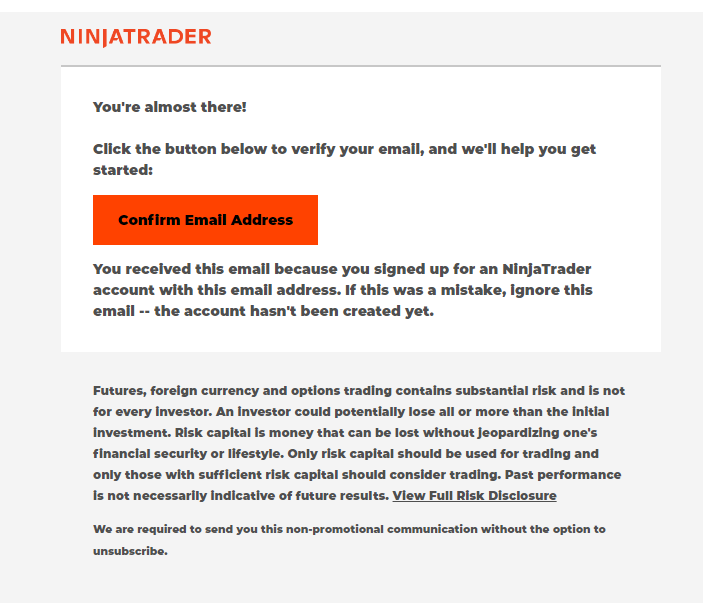
3. Check your email inbox for the confirmation request and click Confirm Email Address.
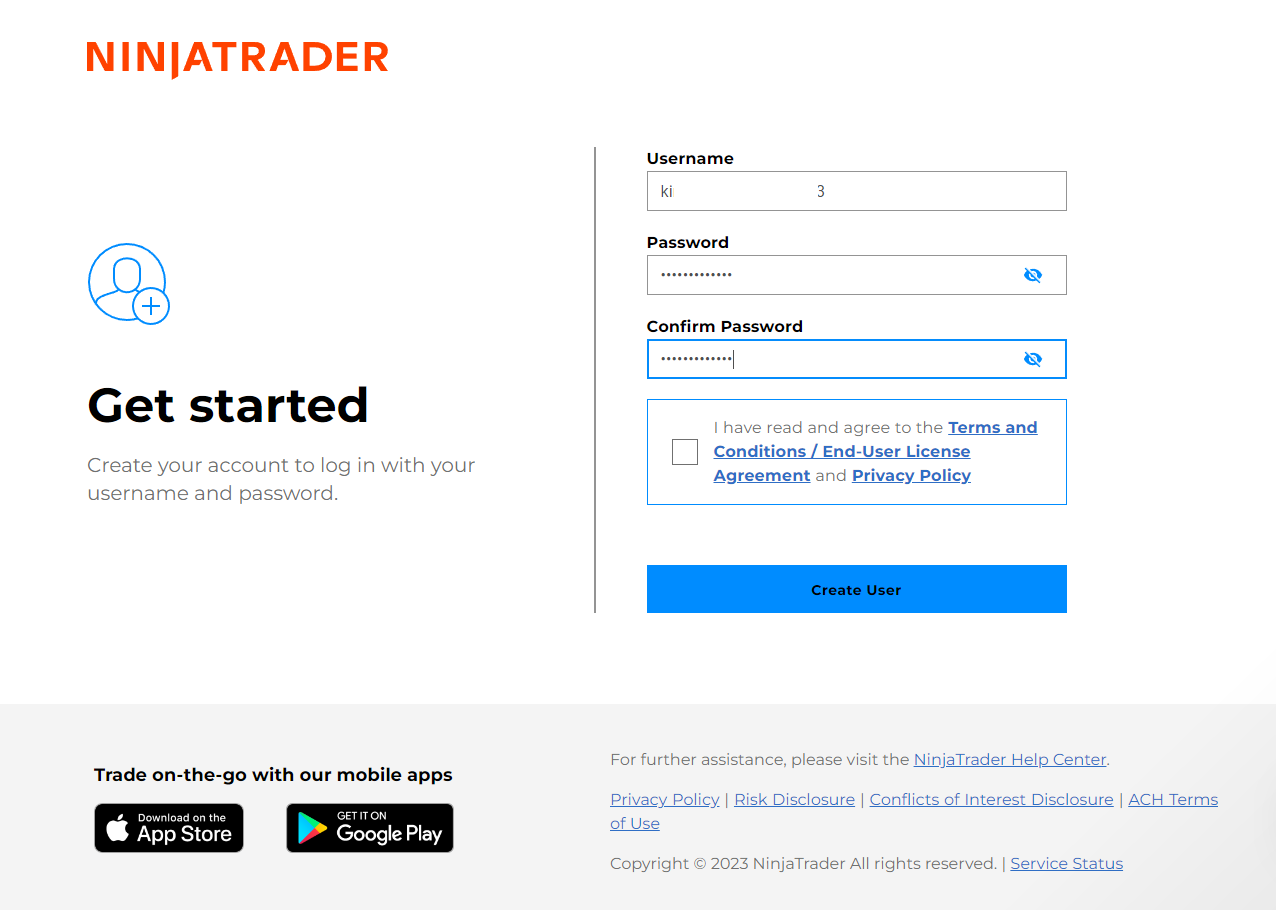
4. Create your Username and Password, read and agree to the required documents, and then click Create User.
- Save your username and password somewhere safe, you’ll need to copy/paste them later when logging in to the NinjaTrader desktop app.
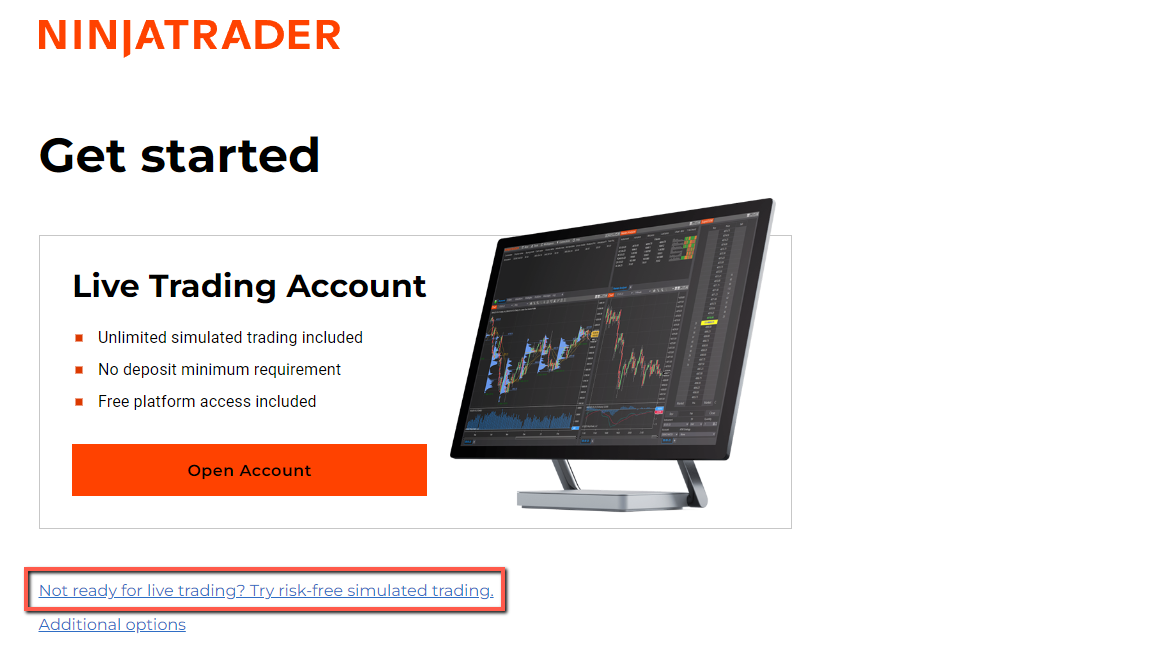
5. You’ll be redirected to the Get Started page. Click Try Risk-Free Simulated Trading
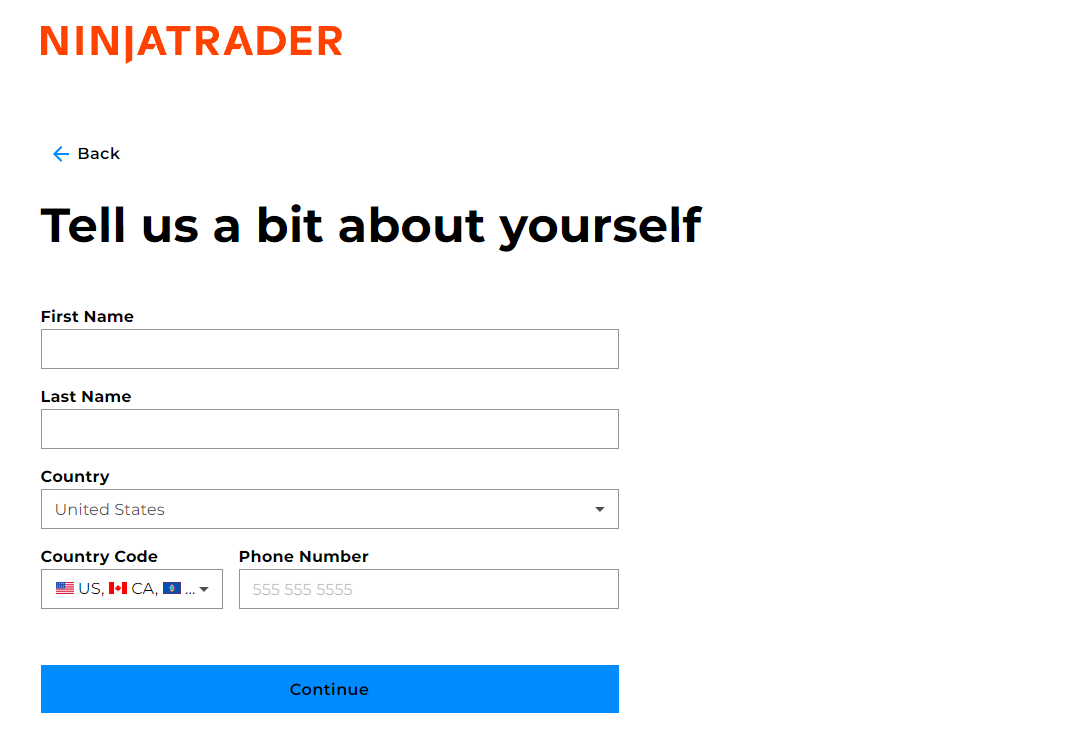
6. Enter your First Name, Last Name, and Phone Number, then click Continue.
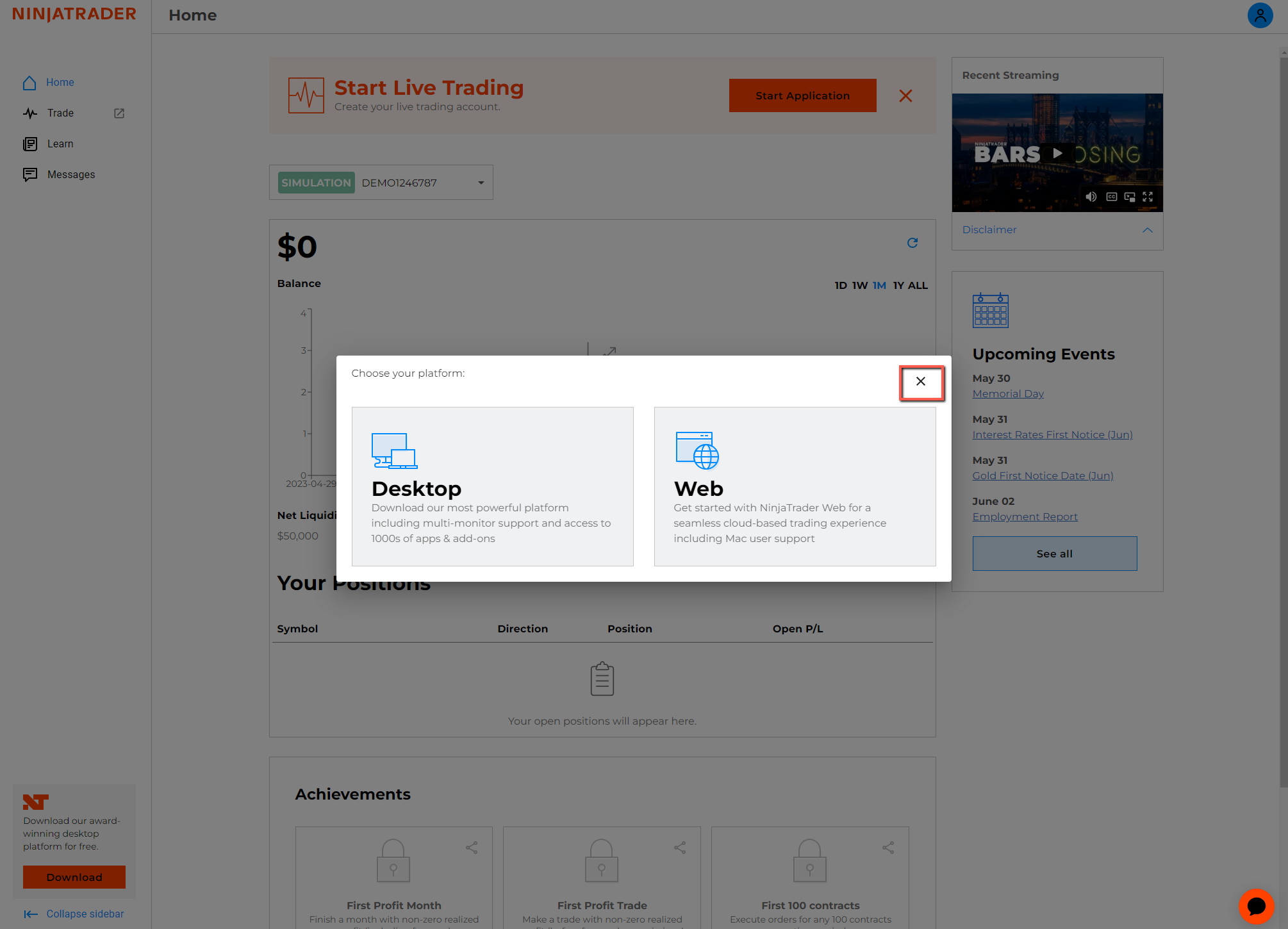
7. You’ll arrive at the NinjaTrader Dashboard.
- If a “Choose Your Platform” window appears, simply close (X) it.
8. Download the Most Recent Release of NinjaTrader version.
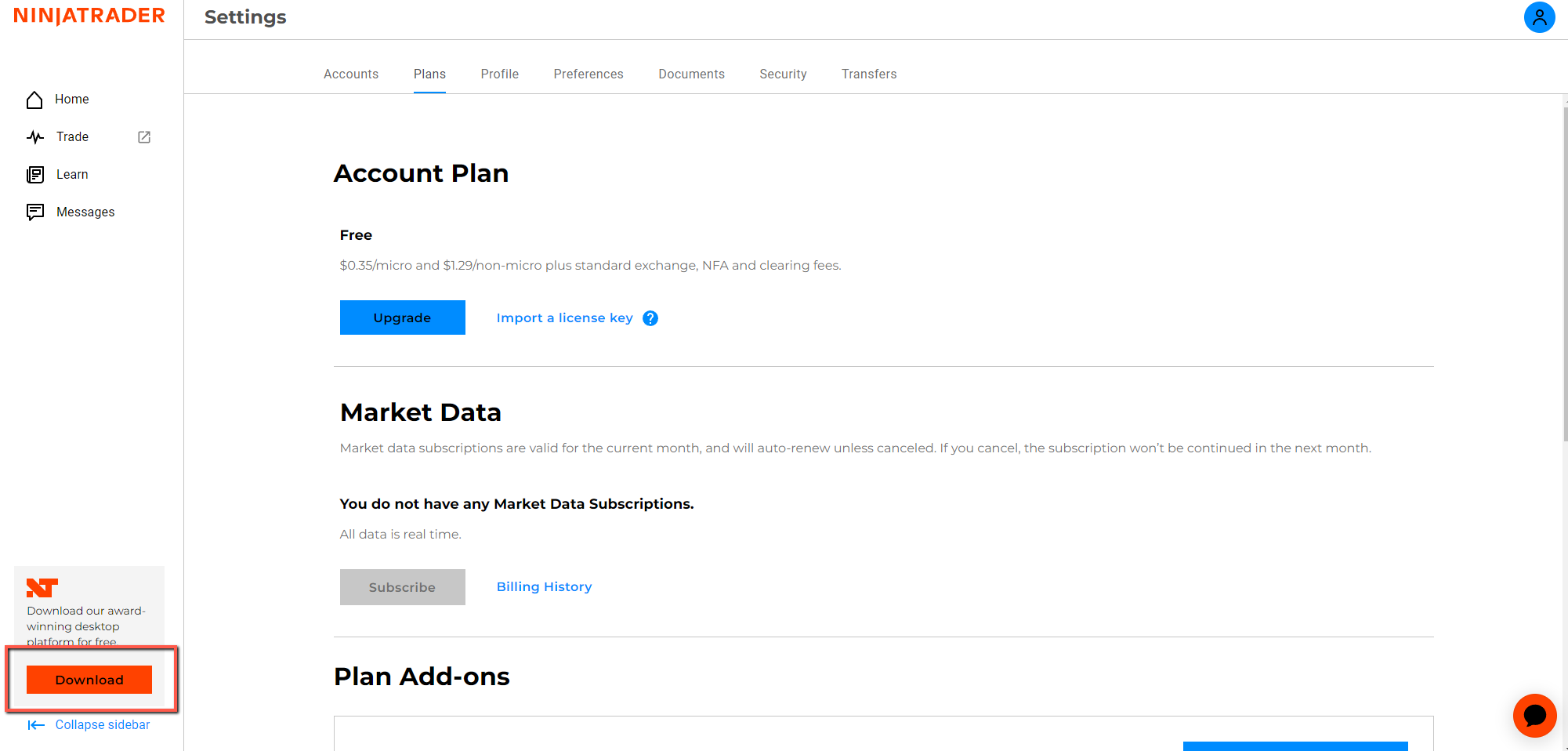
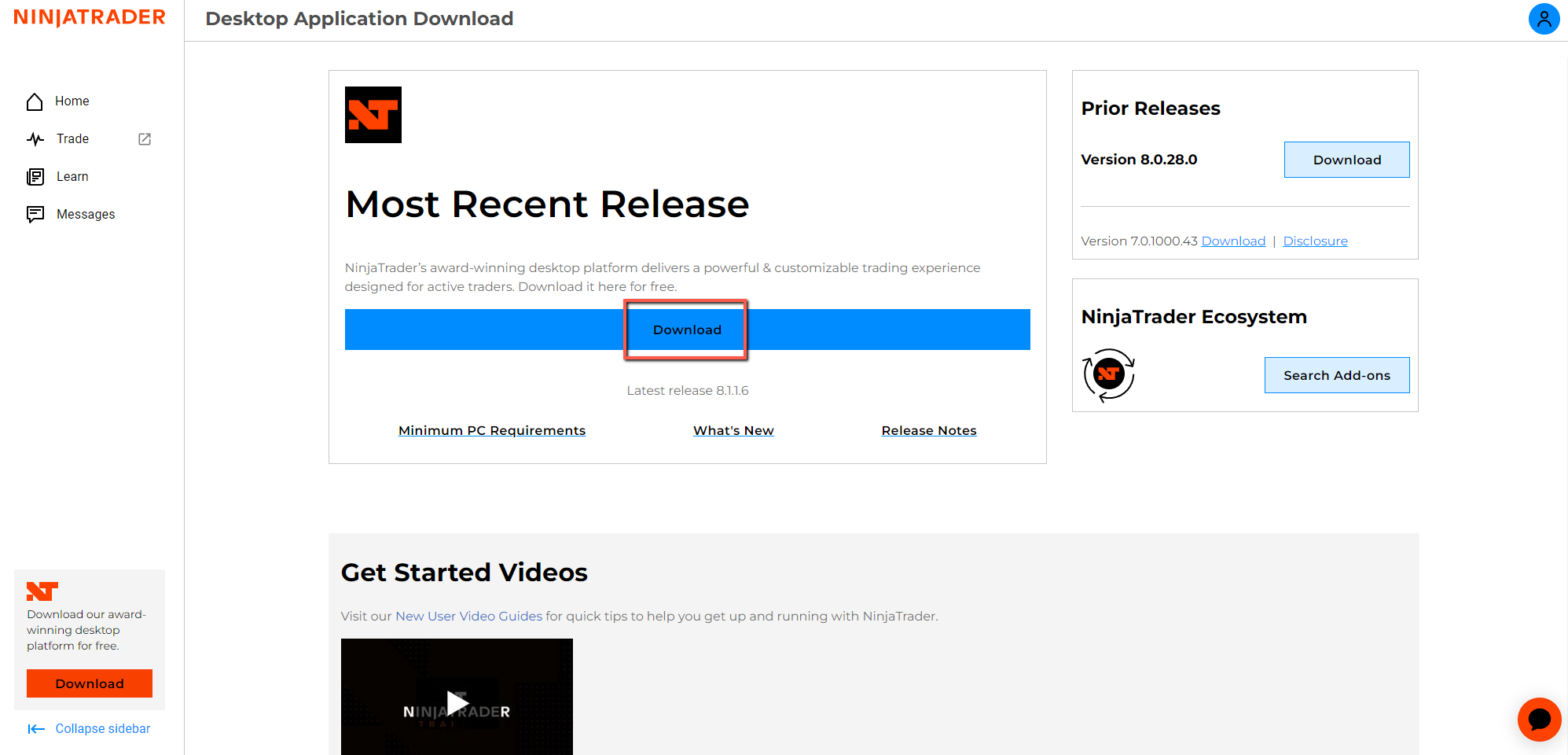
9. Then, download the Most Recent Release of NinjaTrader.
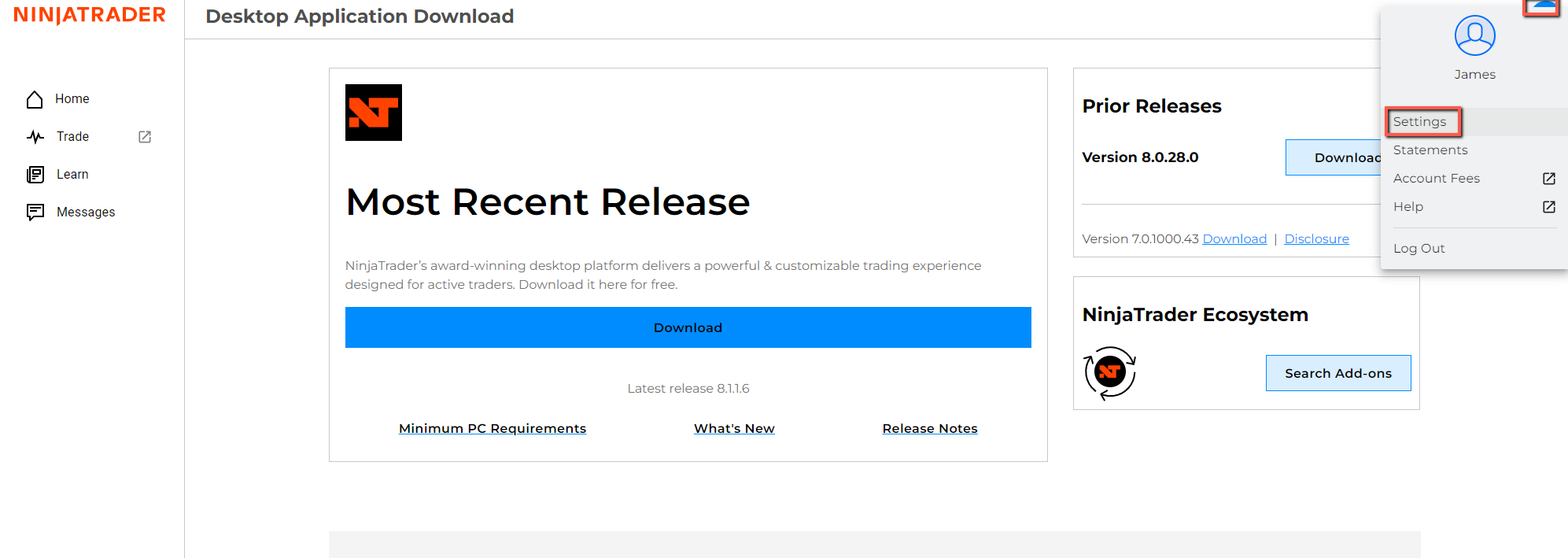
10. While it’s downloading, click the user icon (top right corner) and select Settings.
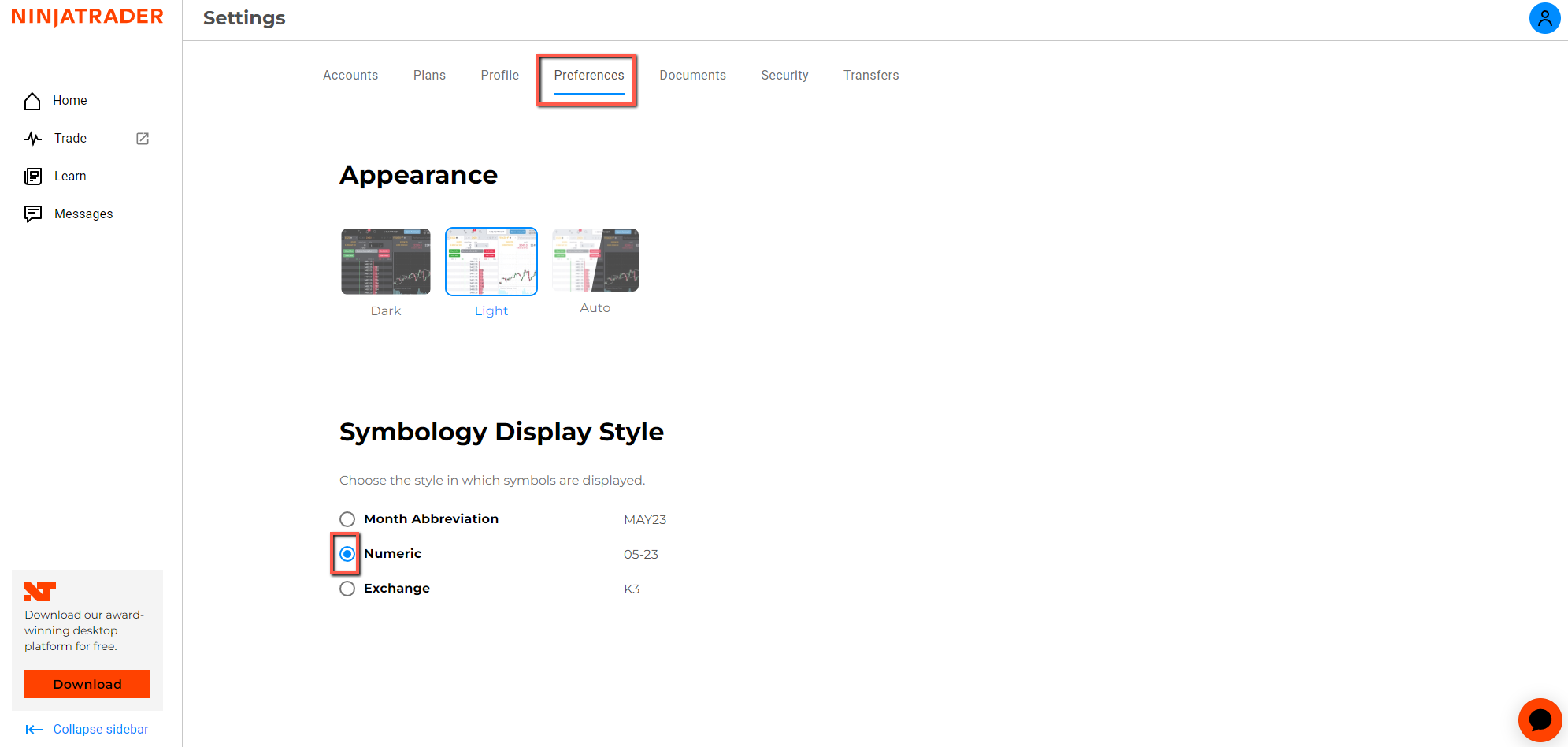
11. In the settings menu, click Preferences → choose Numeric as your format.
NinjaTrader Setup
1. Once NinjaTrader is installed, open the NinjaTrader application.
Enter the Username and Password you created for your NinjaTrader account.
Each time you launch NinjaTrader, you’ll need to log in with these credentials.
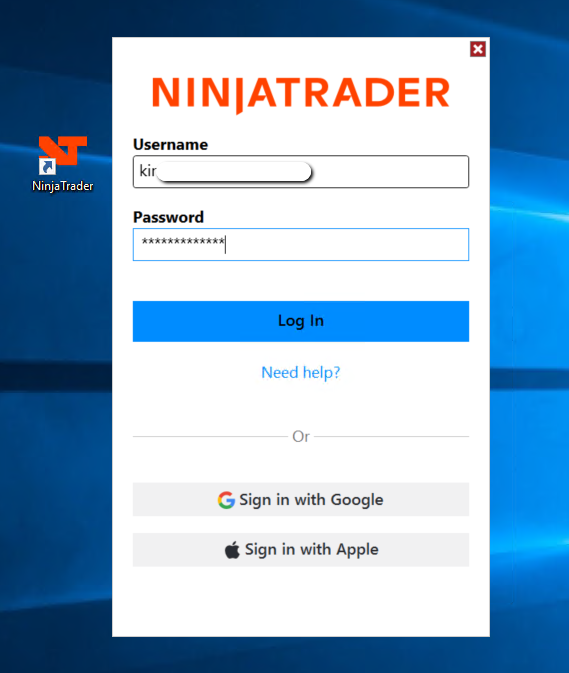
2. NinjaTrader will start and display the NinjaTrader Console.
If you see a Live or Simulation dialog box, always select Simulation, since Apex accounts only operate in simulation mode.
Go to Tools → Settings → General and ensure that Multi-provider is checked. Click Apply → OK, then restart NinjaTrader.
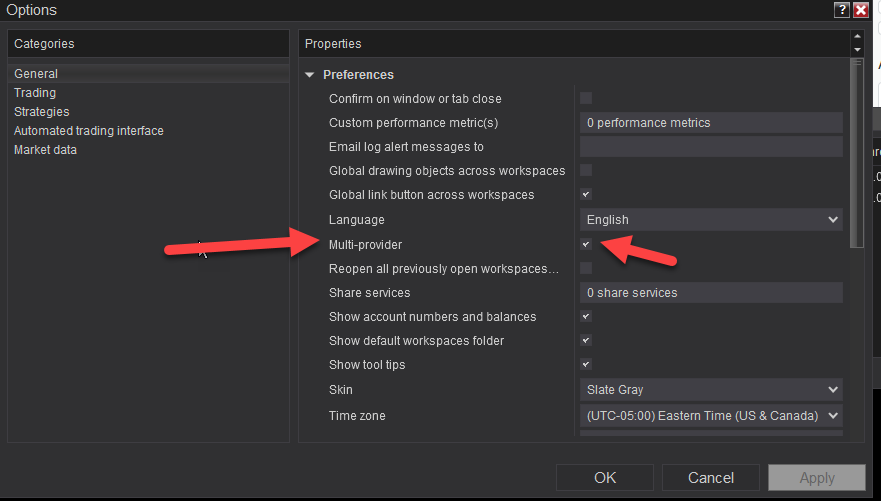
After you check the Multi-Provider checkbox, click Apply → OK, then restart NinjaTrader.
3. After restarting NinjaTrader, you’re ready to set up your connections.
- This will allow you to connect to My Rithmic for NinjaTrader Brokerage and, if applicable, your personal NinjaTrader Brokerage account
- Go to Connections → Configure
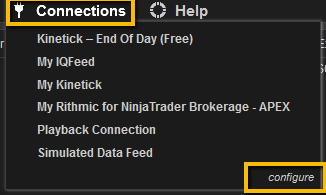
- In the Configure window, click Add, then select My Rithmic for NinjaTrader Brokerage from the list.
Fill in the required fields as shown in the reference image below
- Click OK to save your connection settings.
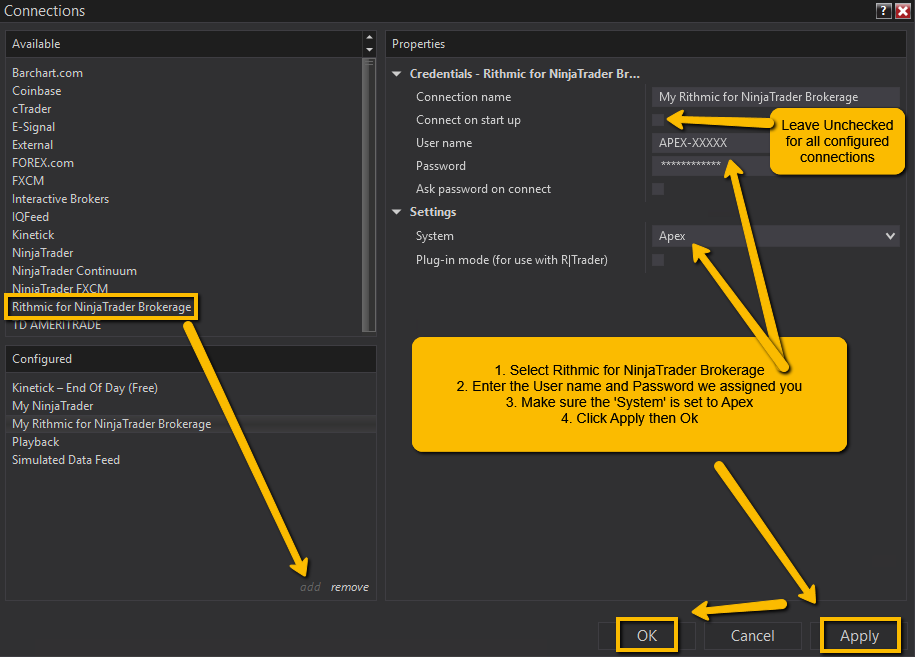
4. Select My Rithmic for NinjaTrader Brokerage to connect to your Apex Rithmic accounts.

Watch the 3 Minute Video Tutorial
Notes & Troubleshooting
- If you upgraded an existing NinjaTrader installation, open Connections and confirm all connections are visible.
- If you can’t create new connections, following the above setup steps will resolve that issue.
Make sure your drivers (especially GPU drivers) are up to date for best performance:
If you had a previous install of NinjaTrader, please continue…
If you upgraded to the latest version of NinjaTrader and use the Sniper Trading System, you may encounter a “String format” chart error. Follow these steps to resolve it:
- Go to https://account.ninjatrader.com and log in using your NinjaTrader credentials.
- Click your profile icon (top right corner).
- Select Settings from the dropdown menu.
- In Settings, open the Preferences tab and select the Numeric Symbol Format option.
- Log out of the account dashboard, then close and restart NinjaTrader.
Once NinjaTrader reopens, connect to your Rithmic or personal accounts and open your Sniper Trading Charts.
- The “String format” error should no longer appear.
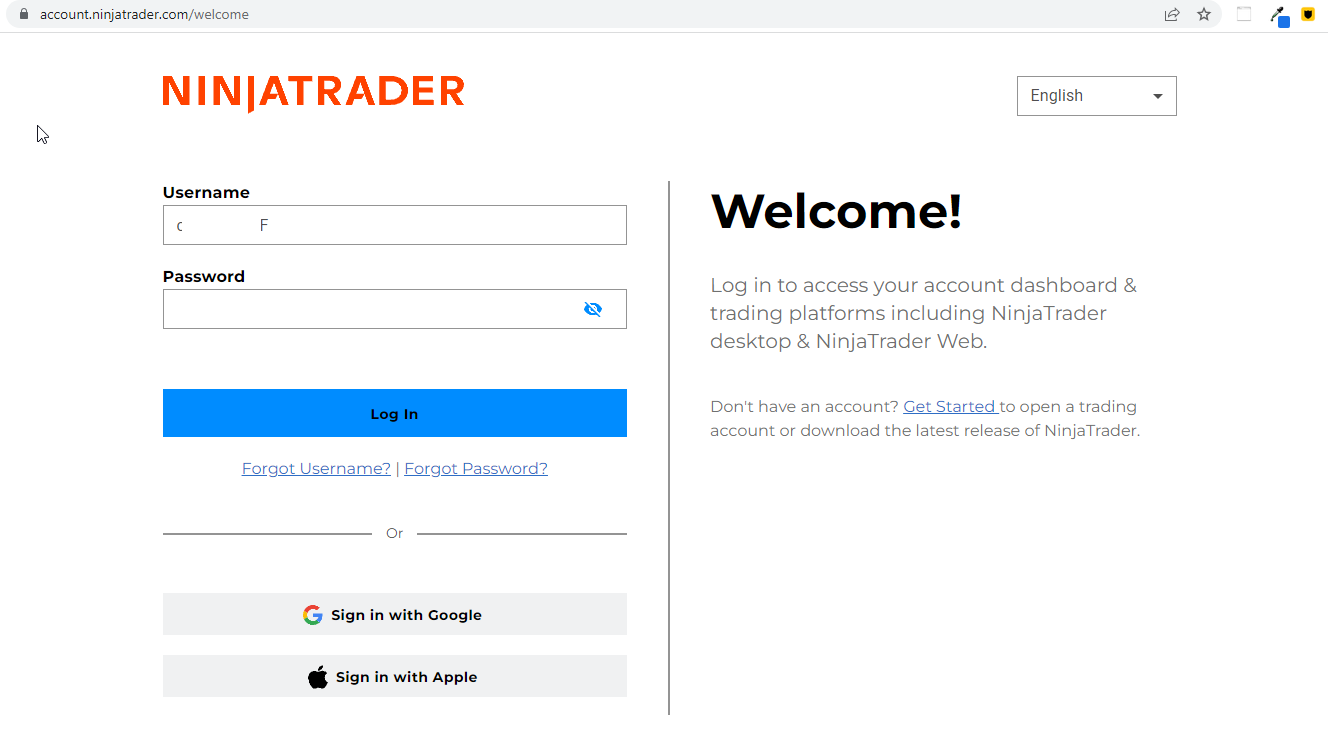
2. Click on your profile icon in the top right-hand corner:
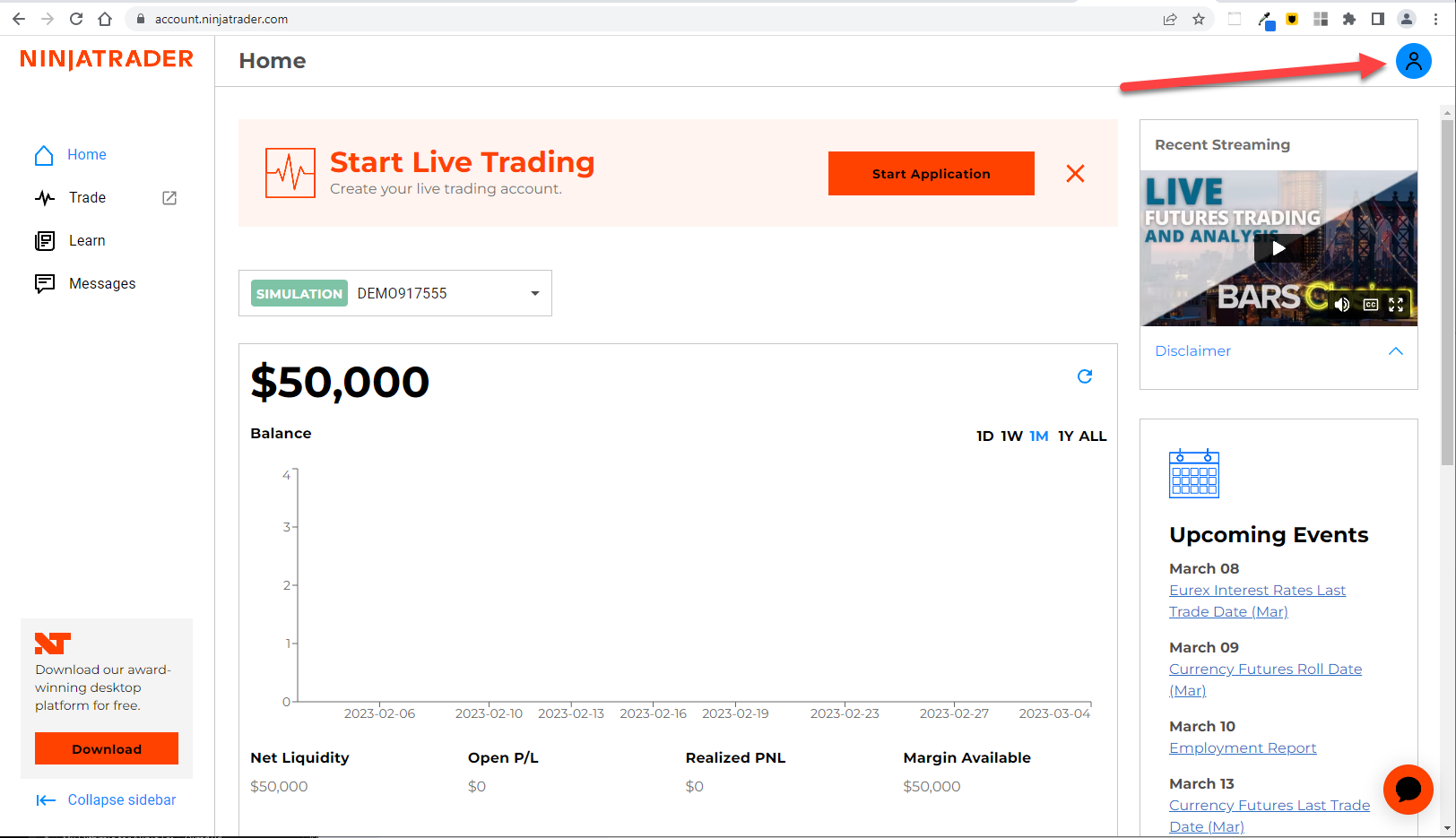
3. Click on the Settings menu item:
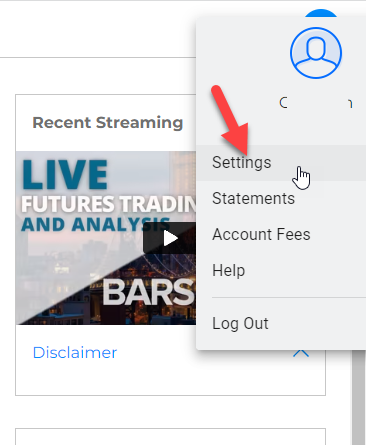
4. When the Settings page opens, click on the Preferences tab, then choose the Numeric Symbol format option:
5. Log out of the account dashboard. Then close and restart NinjaTrader.
6. When NinjaTrader is up, connect to your Rithmic or personal account(s) and open your Sniper Trading Charts. The error message should no longer appear when loading them.
Rithmic Account(s) Not Showing in NinjaTrader
If your Apex Rithmic account is not appearing in NinjaTrader, the issue may be related to your NinjaTrader entitlements.
Check Your NinjaTrader Entitlements
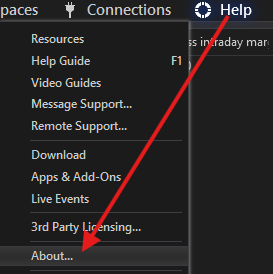
Open NinjaTrader Desktop, and from the Control Center, click Help > About:
Verify the Required Entitlement
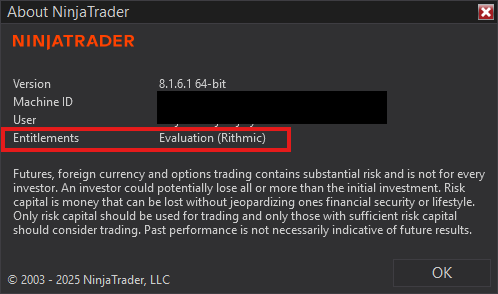
If “Evaluation (Rithmic)” does not appear, NinjaTrader has not enabled the required entitlement on your account.
Example:
Contacting NinjaTrader Support is Required
Apex is not able to help enable entitlements. You will need to contact NinjaTrader Support direclty and request that the Evaluation (Rithmic) entitlement be added to your NinjaTrader account: NinjaTrader Support Center
Suggested message:
My Apex Trader Funding Rithmic account is not appearing in NinjaTrader. I checked Help > About and do not see the “Evaluation (Rithmic)” entitlement. Can you please add the required Evaluation (Rithmic) entitlement to my NinjaTrader account?
Once NinjaTrader confirms the entitlement has been added, restart NinjaTrader and reconnect your Rithmic connection. Your Apex account should then become available.
Critical: OCO orders
OCO (One Cancels Other) orders for Rithmic are locally stored on your PC. This means that NinjaTrader must be connected to your broker in order for the OCO capability to function. If you are disconnected and one of the OCO orders is filled, the other WILL NOT be automatically canceled.