
If you live in the United States, your payouts will be sent via ACH direct deposit to your US-based bank account. Be sure to use your correct ACH routing number, not a wire transfer number, to avoid delays or rejections.
What You’ll Need
Before getting started, make sure you have:
- A US-based checking account
- Your correct ACH routing number (not a wire routing number)
- Your bank account number
- Your Social Security Number or Tax Identification Number
Step-by-Step Instructions
1. Log in to Your Apex Dashboard
Go to https://dashboard.apextraderfunding.com/login and log in with your account credentials.
2. Navigate to “Payout Method”
Once logged in, locate and click the Payout Method tab from the menu located on the left side of your dashboard.
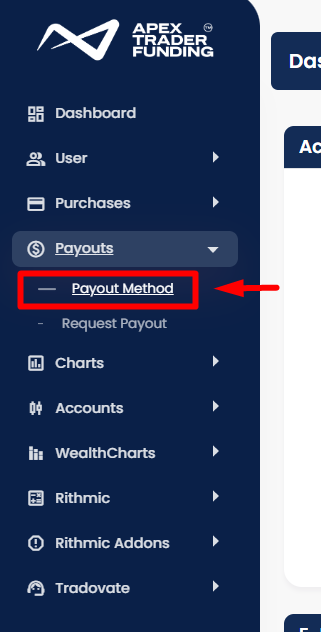
On the pop-up window, read the information, then keep scrolling to the bottom of that page where you can click the “CHANGE PAYOUT METHOD HERE” link.
3. Complete the Required Personal Information Fields
In the payout method section:
- For “US Citizen or US Taxpayer,” select Yes
- Enter your Social Security Number (SSN) or Tax Identification Number (TIN)
- For Payout Type, select Direct Deposit (this is required for all US-based users)
- Choose the correct corresponding account type: Checking or Savings
- Enter your legal First and Last name as it appears on your APEX Profile
4. Enter Your Bank Information
Fill in the following fields accurately:
- Bank Name
- ACH Routing Number
- Bank Account Number
Important: Make sure you enter your ACH routing number, not your wire routing number. They are often different, and using the wrong one will result in delays or payout failure.
5. Save Your Details
After confirming your information is accurate, click Save to complete the setup. You’re now ready to request your payout once eligible.
Additional Requirements and Information
Business Account Payouts
If your Apex user account is registered as a business and you’re requesting payout to a business account instead of a personal account, enter your details using the format below:
- Social Security Number or Tax ID: Enter the business Employer Identification Number (EIN)
- First Name field: Enter the full business name (for example, ABC Business LLC)
- Last Name field: The Last Name field is auto-populated
Avoid using special characters or symbols in the company name, as this may prevent successful processing.
Why can’t I edit the Last Name in the Payout Method?
The name field is automatically populated and cannot be edited. If your account was registered as a business (the business checkbox was selected during sign-up), it is already recognized as a business account—even if a personal name appears. To receive payouts under your business, simply enter your business EIN/Tax Number and connect to a matching business bank account.
Bank Country Must Match Residency
To comply with payout rules and avoid rejections, your bank account must be based in the United States, and your Apex account must also list the United States as your country of residence.
If your residency is listed as outside the US, you will not be able to use a US-based bank account for payouts.